This feature is part of the OpenAI plug-in, which must be enabled for your installation. MQM mode for TQE is available from translate5 version 7.42.0.
With MQM-based Translation Quality Estimation (TQE), the AI does not simply give each segment a score. It marks every translation error it finds as an MQM tag directly in the segment, and translate5 calculates the score from these tags. You see exactly why a segment got its score, reviewers can correct the AI's findings, and you decide how much each type of error costs.
Classic mode and MQM mode
TQE can run in two modes:
Classic mode | MQM mode | |
|---|---|---|
Who decides the score | The AI returns a score per segment. | translate5 calculates the score from the MQM tags the AI placed. |
What you see | A score and a free-text reasoning per segment. | A score, one MQM tag per error in the segment, and per error a suggested correction and the reason. |
Can it be corrected? | No, the score is the AI's opinion. | Yes. Delete wrong tags, add missing ones, change the severity or mark an error as false positive, then recalculate the score. |
Can you control the costs of errors? | No. | Yes, with the MQM scorecard (see below). |
Setting up MQM mode
- Set the configuration
TQE: mode(runtimeOptions.plugins.OpenAI.tqeMode) tomqm, for the whole system or for single clients. - Make sure
Manual QA (inside segment)(runtimeOptions.autoQA.enableMqmTags) is active. Without it, a task has no MQM issue types, and TQE automatically uses classic mode for this task. - Make sure an AI language resource that supports TQE (for example translate5 AI or OpenAI) is available for the language combinations of your tasks.
- Optional: set the AI resource as TQE default for a client, so that it is assigned to every new task automatically. Use
Use as TQE by defaultin the language resource, or the columnTQE by defaultin the client's language resource assignment. - Optional: adjust the MQM scorecard (see "Configuring what errors cost").
The mode and the scorecard are fixed for a task when the task is imported. Changing them later only affects tasks imported afterwards.
Where to find it
- Project overview, task properties: the tab
TQE language resourcesto assign the AI resource and to start or recalculate TQE, and the tabTQE analysisfor the overall score of the task. - Import wizard: the card
TQE language resources. - Editor: the MQM tags in the segments, and the segment grid columns
Quality estimation(the score) andQuality estimation reasoning(the details per error). Both columns can be hidden; show them with the column menu of the segment grid. - Configuration: the MQM scorecard under
MQM issue types & scorecard XML, and the TQE options in the groupTQE.
Running TQE
Automatically during the import
When the client has a TQE default resource, it is assigned to every new task of that client.
- Import via the API: TQE runs automatically as part of the import.
- Import wizard: the card
TQE language resourcesshows the default resource already ticked. TQE runs when you clickImport (use defaults), or when you finish the wizard on the TQE card with a resource ticked. If you leave the wizard on an earlier card withImport (skip next steps), TQE does not run, like all other default steps.
Manually
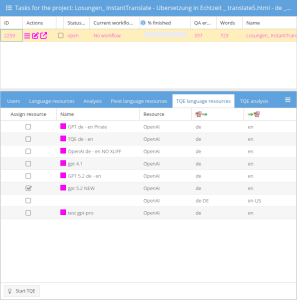
- In the project overview, select the task.
- Open the tab
TQE language resources. - Tick
Assign resourcefor the AI resource you want to use. - Click
Start TQE. - Confirm the question with
Yes. The AI marks all errors again and replaces ALL existing MQM tags of the task, including manually added or corrected ones. - When TQE is finished, the tab
TQE analysisshows the score of the task and the editor shows the new MQM tags.
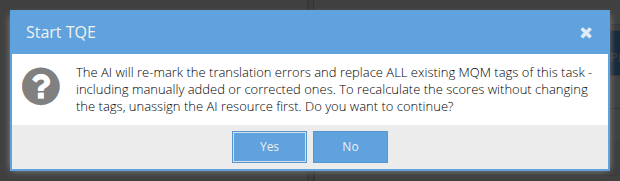
Starting TQE with an AI resource assigned always deletes all MQM tags of the task first, also the ones your reviewers added or corrected. To update the scores after a review, use the recalculation described below.
Recalculating the score without the AI
After reviewers corrected the MQM tags, update the scores without calling the AI again:
- In the project overview, select the task and open the tab
TQE language resources. - Untick
Assign resourcefor the AI resource. The button now readsRe-calculate TQE score. - Click
Re-calculate TQE score. - The message "The quality scores were recalculated from the current MQM tags." appears. The tags are not changed and the AI is not called.
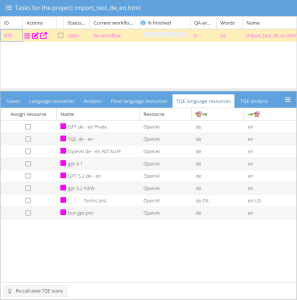
If TQE: segment check (runtimeOptions.plugins.OpenAI.qualityScoreSegmentCheck) is active, single segments don't need this step: the score of a segment is recalculated from its MQM tags every time the segment is saved. The AI is not called.
With a workflow action
TQE can also start automatically at a workflow event, for example when the import is completed or when a workflow step is finished. The action ships inactive; activate it per installation by adding a workflow action row, choosing the workflow and the trigger. With an AI resource assigned, a full TQE run is queued; without a resource, the scores are only recalculated from the current MQM tags.
INSERT INTO `LEK_workflow_action`
    (`workflow`, `trigger`, `inStep`, `byRole`, `userState`, `actionClass`, `action`, `parameters`, `position`)
VALUES
    ('default', 'handleImportCompleted', null, null, null,
     '\\MittagQI\\Translate5\\Plugins\\OpenAI\\Workflow\\Actions\\QueueTqeAction', 'queueTqe', null, 0);
Other useful triggers: handleAllFinishOfARole with inStep and byRole (a workflow step is completely finished) and handleSetNextStep with inStep (a step is entered). Repeat the row for every workflow that should use it. To deactivate, delete the row.
Reading the results
In the editor
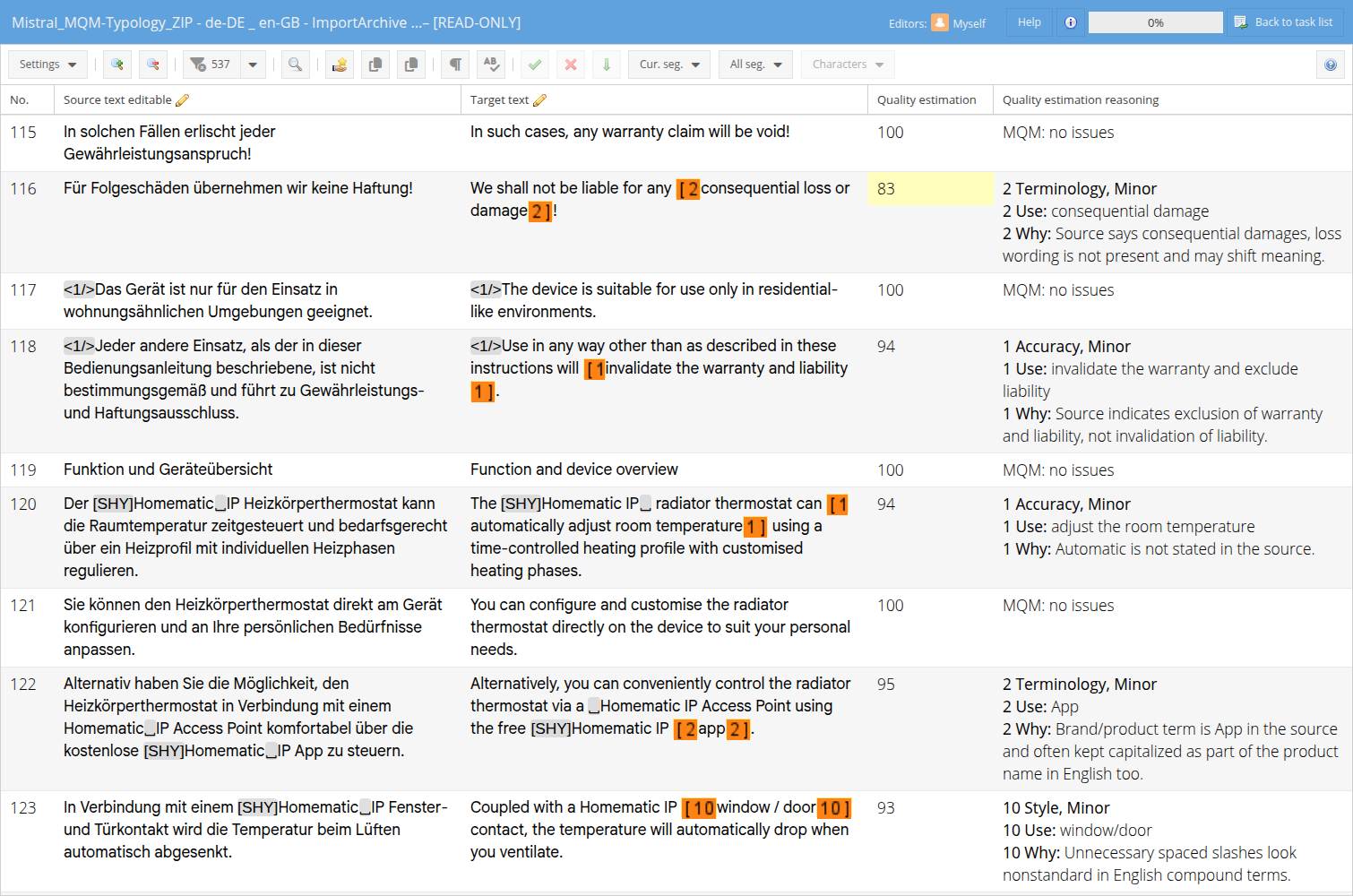
- MQM tags: each error found by the AI is an MQM tag pair around the wrong text, showing the number of the issue type.
- Column
Quality estimation: the score of the segment from 0 to 100, coloured by quality. - Column
Quality estimation reasoning: one block per error, in the order the errors appear in the segment. The number at the start is the number on the MQM tag.Useis the correction the AI suggests (you can copy it from the column),Whyis the reason. A segment without errors shows "MQM: no issues".
Hover over an MQM tag to see the issue type, the severity and how the score of the segment was calculated: the number of issues, the penalty points, the number of words and the penalty points per issue. If the AI was not fully sure about an issue, its probability is shown as well (60% in the example).

When the segment content is changed after TQE (by editing, search and replace, repetitions and so on), the reasoning gets the line "Segment changed, LLM reasoning deprecated!" at the top. The old reasoning stays below it for reference. The line disappears with the next TQE run with the AI. It does not appear when TQE: segment check is active, because then the score is updated on every save.
In the tab "TQE analysis"
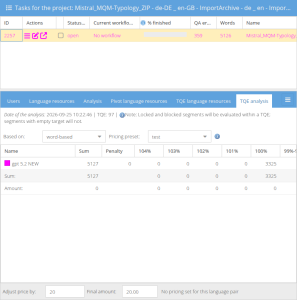
The tab shows the date of the analysis, the overall TQE score of the task (the average of all segments, weighted by words) and how the words are distributed over the score ranges. You can switch between word-based and character-based counting.
How the score is calculated
translate5 uses the scoring model of the official MQM scorecard (themqm.org):
score = (1 - penalty points / word count) x 100 (never below 0)
- Every error costs severity multiplier x weight penalty points. With the default scorecard, a minor error costs 1 point, a major error 5 points and a critical error 25 points.
- The penalty points of all errors in the segment are added up and divided by the number of words in the source segment.
- A segment without errors scores 100.
Example from the screenshots above: segment 116 has 6 source words and one minor Terminology error (1 point). Score: (1 - 1 / 6) x 100 = 83.
Example with two errors: a segment with 20 source words has one minor Grammar error (1 point) and one major Mistranslation error (5 points). Penalty points: 6. Score: (1 - 6 / 20) x 100 = 70.
Not counted are:
- errors marked as false positive,
- errors the AI reports with a probability below the threshold of their issue type (these are not even tagged, see the probability setting of the scorecard below).
The AI's probability never makes an error cheaper: a counted error always costs its full penalty points. The same errors therefore always give the same score.
Short segments are scored strictly. One minor error in a segment of 1 word gives 0, in a segment of 2 words 50. This is how the official MQM formula works. If this is too strict for your content, lower the multiplier of the minor severity in the scorecard.
Correcting the AI's results
MQM tags placed by the AI are normal MQM tags. Reviewers handle them like manually placed ones:
- Wrong error: delete the MQM tag, or mark the error as false positive in the editor (section
Ignore errorsof theQuality assurancepanel, or right-click the error). - Missing error: add an MQM tag manually.
- Wrong severity: change the tag's severity.
The score then follows on the next save of the segment (if TQE: segment check is active) or when you click Re-calculate TQE score. Marking an error as false positive alone does not update the score; recalculate afterwards.
,Configuring what errors cost: the MQM scorecard
The issue types, their weights, the severity multipliers and the probability thresholds are defined in one XML, the MQM scorecard. You find it in the configuration under MQM issue types & scorecard XML (runtimeOptions.editor.qmFlagXmlContent, group Editor: QA). It contains the default scorecard of translate5, so you always see which values are in use.
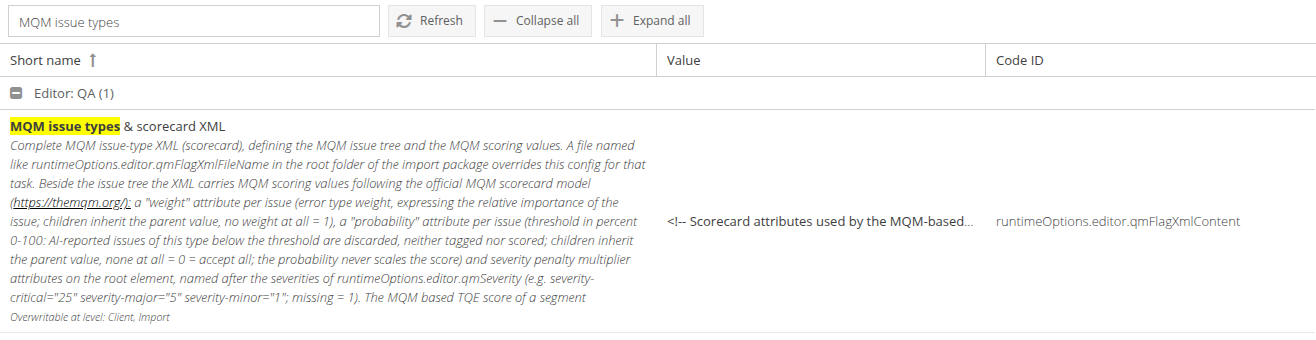
When you edit the value, the XML opens in an editor window. Invalid XML cannot be saved.
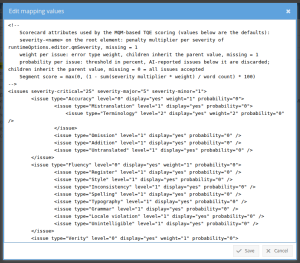
The configuration can be overridden per client (in the client's configuration) and per task at import.
What you can set
Setting | Where in the XML | What it does | Default |
|---|---|---|---|
Severity multiplier | On the root element | Penalty points per error of this severity, multiplied with the weight. The severity names follow | critical 25, major 5, minor 1 |
Weight |
| How important this issue type is. | 1 |
Probability |
| Minimum confidence in percent (0 to 100). Errors the AI reports with a lower probability are dropped: not tagged and not counted. Sub-types inherit the value of their parent. | 0 (all errors are accepted) |
Example: Accuracy errors cost twice as much, and the AI must be at least 60% sure about them:
<issues severity-critical="25" severity-major="5" severity-minor="1">
	<issue type="Accuracy" level="0" display="yes" weight="2" probability="60">
		<issue type="Mistranslation" level="1" display="yes" weight="2" probability="60" />
	</issue>
</issues>
Where the scorecard of a task comes from
At import, translate5 takes the first available source and copies it into the task:
- A file
QM_Subsegment_Issues.xml(exact, case-sensitive name) in the root folder of the import package. This file wins over the configuration for this task, and the task log notes that it was used. A file with a different name or in a subfolder is ignored, and the task log shows a warning. - The configuration
MQM issue types & scorecard XML, with its client and task import overrides. This is the normal case. - Only if the configuration was emptied: the file
client-specific/public/modules/editor/QM_Subsegment_Issues.xmlon the server, otherwise the shipped filepublic/modules/editor/QM_Subsegment_Issues.xml.
To test different values, change the scorecard and import a new task after each change. Existing tasks keep the scorecard they were imported with.
Configuration options
Option (name in the UI) | Default | Can be set for | Description |
|---|---|---|---|
|
| system, client, task import |
|
| the default scorecard | system, client, task import | The MQM scorecard. Empty means the scorecard files on the server are used. |
| critical, major, minor | system | The severities of MQM tags. |
| active | system, client, task import | Must be active for MQM mode. |
| off | system, client, task import, task | Recalculates the score of a segment on every save. |
| active | system, client, task import, task | Sends the task terminology to the AI, so that correctly used terms are not marked as errors. |
| 5 colour steps up to 90 | system, client, task import, task | Background colours of the score column. |
Access rights
Right (resource | Default roles | What it allows |
|---|---|---|
| pm, clientpm, pmlight, jobCoordinator | Start TQE or the score recalculation. |
| pm, clientpm, editor, pmlight, jobCoordinator | Assign and unassign the TQE resource of a task. |
| editor, jobCoordinator | List the available TQE resources. |
| pm, clientpm, pmlight, jobCoordinator | Show the TQE analysis of a task. |
The tab TQE language resources is not shown to job coordinators.
Good to know
- The AI checks the language quality only. Missing or misplaced internal tags are not detected by TQE; use the AutoQA tag check for this.
- If the AI gives no usable answer for a segment even after several tries, translate5 calculates the segment's score from its current MQM tags without the AI (a segment without tags then scores 100). The reasoning says that no usable AI answer was received.
- InstantTranslate file translations have no MQM issue types and always use classic mode.
- Messages in the task log:
E1802: the scorecard of the task was taken from the file in the import package.E1803: the import package contains a file that looks like a scorecard but has the wrong name or is not in the root folder. It was ignored.E1797: a request to the AI was rejected, after automatic retries.E1798: some segments got no usable answer in a round; they are sent again.E1799: segments without a usable AI answer after all retries; they were scored without the AI.E1800: MQM mode is configured, but the task has no MQM issue types; classic mode was used.