translate5 does not provide an alignment editor, but it allows you to align source and target texts and import them into a Translation memory if multiple language versions of the same text are available.
How to align two texts
Creating a project for the source text
- Create a translation project in translate5 with the correct language combination for the alignment. Make sure that the Translation memory into which the alignment content is to be imported is linked to the project as the main Translation memory.
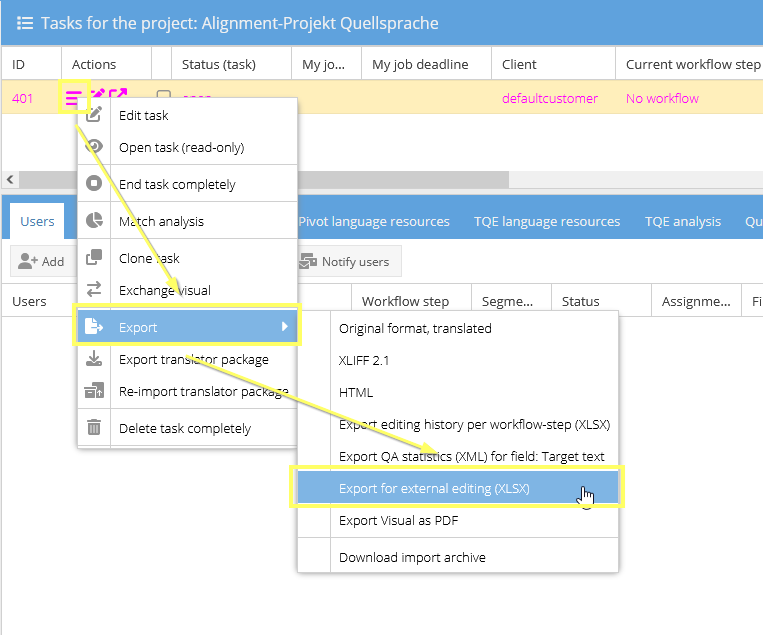
- Now export the project via the task menu for external editing in Excel:
- Click on the Project menu
 .
. - Select the menu option “Export”.
- Select the menu option “Export for external editing (XLSX)”.
- Click on the Project menu
| It is important that abbreviations for the source language used are stored and well maintained in the SRX file in the File format and segmentation settings so that wrong segmentations due to abbreviations can be avoided. |
|---|

Creating a project for the target text
- Create a translation project in translate5 with exactly the same source language as your target language file. The target language is irrelevant and can be chosen freely.
- Now export the project via the task menu for external editing in Excel:
- Click on the Project menu .
- Select the menu option “Export”.
- Select the menu option “Export for external editing (XLSX)”.
- Click on the Project menu
| It is important that abbreviations for the source language used are stored and well maintained in the SRX file in the File format and segmentation settings so that wrong segmentations due to abbreviations can be avoided. |
|---|
Merging the source and target texts in Excel
After exporting the two projects, you now have two Excel files, one containing the segmented source text in the source column and the other one containing the segmented target text also in the source column. The segmented target text must now be inserted into the Excel file from the source text project:
- Open both Excel files.
- Copy the source text of the target language project Excel file into the target text column of the source language project Excel file.
- Save the source language project Excel file.
| After copy-pasting at the latest, you can see whether both projects contain the same number of segments. If the number of segments here does not match (e.g. one source-language sentences was split up into two in the target language or vice versa, or because an abbreviation that is not listed in the SRX file [in the File format and segmentation settings] has caused an additional segmentation), the re-import back into the project cannot be carried out successfully in the next step. |
|---|
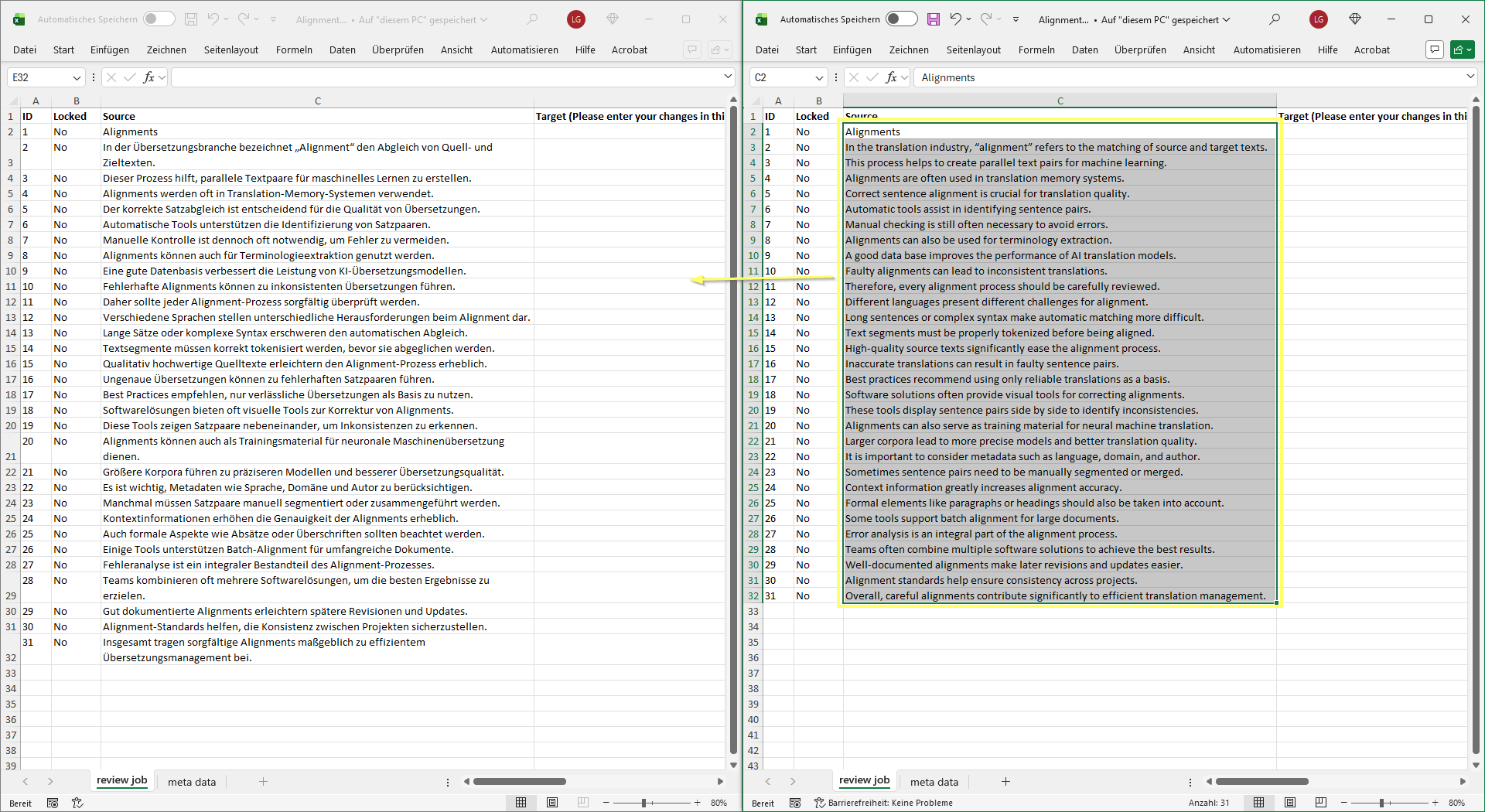
Importing merged Excel file into source text project
You now have the export Excel file from the source-language project with the source-language text in the source column and the target-language text in the target column.
- Navigate to the source language project in translate5.
- Import the Excel file back into the project via the task menu:
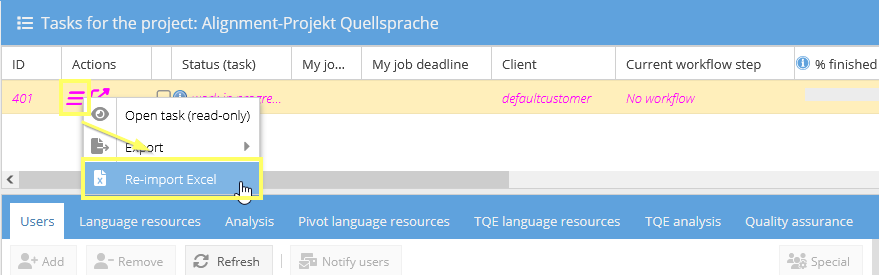
- Click on the task menu .
- Select the menu option “Re-import Excel”.
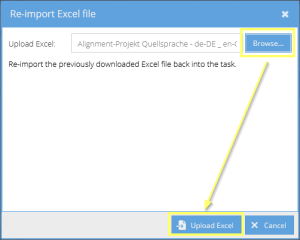
- In the “Re-import Excel file” window that appears, select the relevant Excel using “Browse ...”.
- Confirm by clicking the “Upload Excel” button.
- Click on the task menu
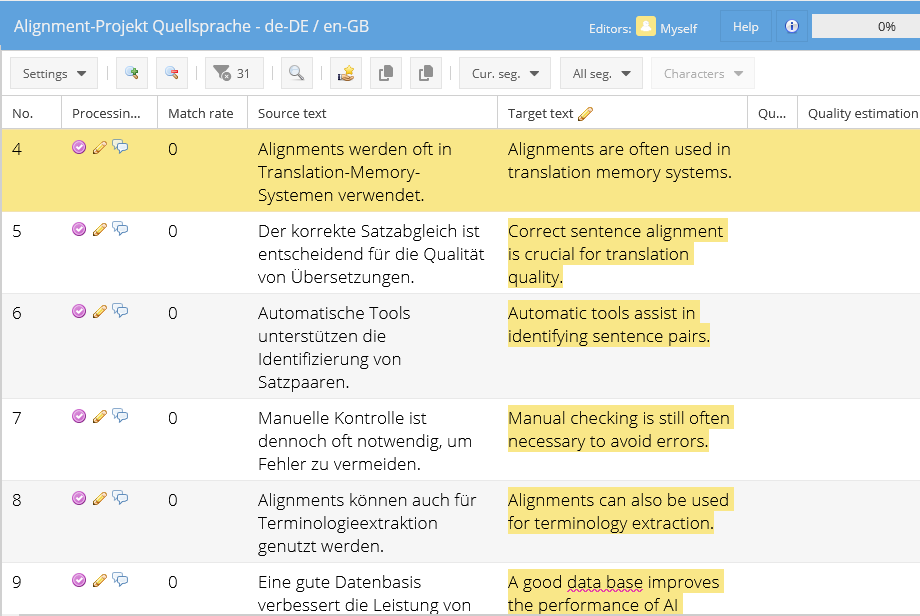
The Excel file is now being imported into the project, i.e. the target language content is transferred from the Excel file to the translate5 project. If necessary, the transferred segments can now be revised/checked in the translate5 editor.
Saving the aligned content to the Translation memory
There are two options for importing the aligned content into the Translation memory:
- You can either finalize the project so that the contents are saved to the linked main TM when the project is completed (here you must ensure that the correct TM with write permissions is linked to the project).
- Or you can import the content into the correct TM(s) via the language resources overview.
| The alignment method described here works best if the source and target files used are direct translations that contain the same number of segments. |
|---|---|
| To ensure that the source and target text are segmented into the same number of segments, it is important that all abbreviations used are included in the SRX file in the File format and segmentation settings. |