Average Levenshtein distance
The Levenshtein distance (also called edit distance) between two character strings is the minimum number of insert, delete and replace operations to convert the first character string into the second. The distance is named after Russian scientist Wladimir Lewenstein (Levenshtein), who introduced it in 1965 (see Levenshtein distance on Wikipedia). translate5 by default measures the average Levenshtein distance in every project and task. The implemented measurement method corresponds to the formulas described on this website; the calculator available there can be used for comparison and verification purposes.
Levenshtein distance at segment level
In translate5, the Levenshtein distance is calculated for each segment and made available for querying as an average value across all filtered segments at task level in the task list. This means that you can at any time query the average Levenshtein distance of a single task or all tasks that match the current filtering. Or also of a subset of the segments of one or more tasks if the task list is filtered by TQE value, match rate or by language resource(s) or types used for the pre-translation. And all of this for different points in time and time spans within the project.
translate5 measures the Levenshtein distance:
- before the start of the workflow,
- within one workflow step,
- since import/pre-translation and
- after the end of the workflow.
The segment contents of the following points in time/spans are compared with each other:
Measuring points in translate5
- Initial state – content of the target segment after import, i.e. after pre-translation (via translation memory, machine translation or LLM. The pre-translation can also take place subsequently, after the import / in the running project), or in the case of bilingual source files (e.g. XLIFF) in the software that generates the bilingual files. Target segments can be empty if no pre-translation has been carried out. This empty state is then used as a reference value for the measurement since import/pre-translation in the case of human translation.
- Current state – changes since import/pre-translation: The difference between the content after the pre-translation or import (initial state) and the most recent change to the current workflow step is calculated here. This also applies if the target segment was empty after the import (as it was not pre-translated). In such cases, the Levenshtein distance after the first processing corresponds exactly to its segment length, as all characters in the target segment were newly inserted during human translation.
- Difference state – changes between two consecutive workflow steps: The distance between the most recent change in the current workflow step and the most recent change in the previous workflow step is measured here. If there is no preceding step (e.g. for the very first workflow step), the measured value corresponds to the value since import/pre-translation.
| Pre-translations by translation memory, MT or LLM do not cause any statistical entries for the Levenshtein distance. |
|---|---|
| If the segments were pre-translated by machine or with an LLM, the pre-translation is considered the first version and the manual translation or post-editing step is taken into account in the Levenshtein calculation. |
| The Levenshtein distance at the start of a workflow step is always entered into the statistics as 0 for this workflow step, so that the correct average can be determined at any time during the query. As workflow steps whose status is still set to “waiting” do not yet contain any editable segments, no initial Levenshtein distance of 0 is set for them, and they are not yet included in the statistics. |
| For segments that are empty after the import, but for which internal fuzzy matches exist that were not automatically transferred to the target segment due to the pre-translation rate, the Levenshtein distance of the respective transferred master segment is set. |
| Segments with a “Draft” processing status are included in the statistics. |

Calculation and weighting
The formula for calculating the Levenshtein distance is – simplified – as follows:

The formula for calculating the average Levenshtein distance in translate5 is as follows:

The average Levenshtein distance is always a mean value weighted by the number of segments, even if segments of more than one task are included in the calculation. Here is an example to illustrate this:
| Task A | Levenshtein distance | |
|---|---|---|
| Segment 1 | 4 | |
| Segment 2 | 3 | |
| Segment 3 | 2 | |
| Average Levenshtein distance task A: | 9 / 3 = 3 | |
| Task B | Levenshtein distance | |
|---|---|---|
| Segment 1 | 6 | |
| Segment 2 | 4 | |
| Segment 3 | 2 | |
| Segment 4 | 4 | |
| Average Levenshtein distance task B: | 16 / 4 = 4 | |
The average Levenshtein distance from task A and task B combined is calculated as follows:
4 + 3 + 2 + 6 + 4 + 2 + 4 = 25
25 / 7 =3,5714
The sum of all Levenshtein distances is therefore calculated and then divided by the added-up number of all segments.
| Blocked segments are never included in the statistics, while locked segments are included before locking / after unlocking. Segments without any translation/editing are also included in the statistics. |
|---|
Measurement of character changes within the segments
The text on the right consisting of four segments is used to illustrate the analyses and how the Levenshtein distance is measured:
Fit for fun, klein, smart und sofort einsatzbereit.
Fit for fun passt in jede Tasche, trainiert überall.
Mehr Bewegung im Alltag, ganz ohne Aufwand.
Fit for fun ist dein schneller Boost für Kraft und Energie.
Statistic types
The following graphic visualizes the different points in time/time periods for which the Levenshtein distance is measured.
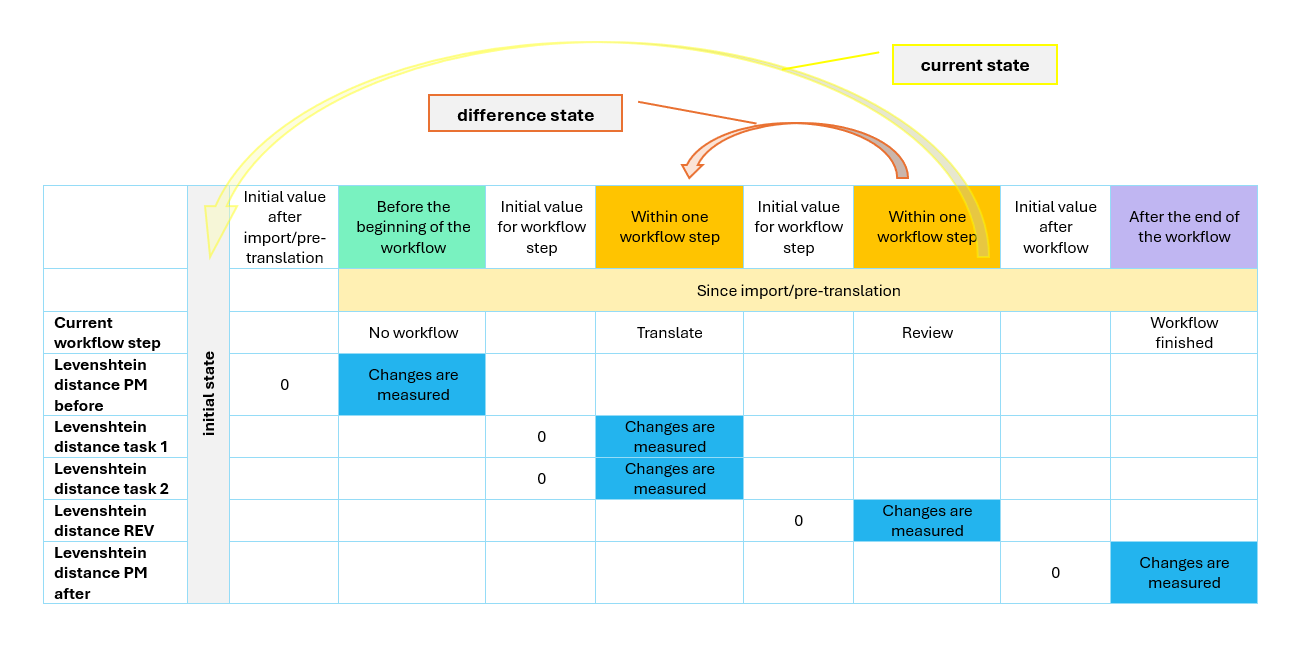
The colour coding of the cells in the graphic above is also used in the table below, in which the various statistics are explained with examples:
| Point in time/period of time | Explanation | Example (without any active filter) | Sample text after editing | ||||||||
|---|---|---|---|---|---|---|---|---|---|---|---|
before the beginning of the workflow | Shows the average Levenshtein distance as a result of the changes made before the start of the workflow, e.g. if the project managers made changes to the segments before assigning users. The “Current workflow step” status is set to “No workflow”. The state “before the beginning of the workflow”, i.e. outside any workflow steps, is analysed here. In concrete terms, the segment contents are compared between after the task import and before the start of the workflow. | The project manager changes the product name “Fit for fun” to “Fit4fun” in three places after import with pre-translation, before assigning any jobs to users. → 4 characters deleted, 1 character changed. Levenshtein distance = 3 x 5 = 15; Average Levenshtein distance before the beginning of the workflow = 3,75 | Fit4fun, klein, smart und sofort einsatzbereit. Fit4fun passt in jede Tasche, trainiert überall. Mehr Bewegung im Alltag, ganz ohne Aufwand. Fit4fun ist dein schneller Boost für Kraft und Energie. | ||||||||
within one workflow step | Shows the average Levenshtein distance within a workflow step, i.e. between the last changes in the previous workflow step and the version before the last saving of the current workflow step, meaning the very last processing before the workflow step was finalized. | The translator post-edits a passage. → 11 characters added, 1 character changed Levenshtein distance = 12 Average Levenshtein distance within the “Translate” workflow step = 3 | Fit4fun, klein, smart und sofort einsatzbereit. Fit4fun passt in jede Tasche, damit trainieren Sie überall. Mehr Bewegung im Alltag, ganz ohne Aufwand. Fit4fun ist dein schneller Boost für Kraft und Energie. | ||||||||
| |||||||||||
since import/pre-translation | Shows the average Levenshtein distance since import/pre-translation up to the latest edit. | The reviewer changes the formality of the text. → 7 characters changed, 1 character inserted, 1 character deleted Levenshtein distance “Review” = 9 Levenshtein distance “Translate” = 12 Levenshtein distance project manager (before the beginning of the workflow): 15 Total since import/pre-translation: 29 changes Average Levenshtein distance since import/pre-translation =7,25 | Fit4fun, klein, smart und sofort einsatzbereit. Fit4fun passt in jede Tasche, damit trainierst du überall. Mehr Bewegung im Alltag, ganz ohne Aufwand. Fit4fun ist Ihr schneller Boost für Kraft und Energie. | ||||||||
| |||||||||||
after the end of the workflow | Shows the average Levenshtein distance of the changes that a project manager has applied after the workflow has been finished (“Current workflow step” is set to “Workflow finished”). Similar to “within one workflow step”, the status after the last processing of a segment “after the end of the workflow” is compared here with the most recent status of the very last workflow step. | At the client’s request, the project manager adds “Go” to the product name after the workflow has been completed, i.e. after the reviewer has delivered. → 6 characters added Levenshtein distance = 6 Average Levenshtein distance after the end of the workflow = 1,5 | Fit4funGo: Klein, smart und sofort einsatzbereit. Fit4funGo passt in jede Tasche, damit trainierst du überall. Mehr Bewegung im Alltag, ganz ohne Aufwand. Fit4funGo ist Ihr schneller Boost für Kraft und Energie.
| ||||||||
| Inline tags are treated like characters when calculating the Levenshtein distance:
MQM tags are not included in the calculation. |
|---|---|
| Average Levenshtein distance = 0 If a user makes changes that undo the exact changes made by a previous user, this cancels the Levenshtein distance for the affected segment(s) or sets it to 0. Example: Fit4funGo: Klein, smart und sofort einsatzbereit. State after “Translate”: Fit4funGo: Klein, smart und stets sofort einsatzbereit. → Levenshtein distance within workflow step, filter set to “Translate” = 6 (6 additions) State after “Review”: Fit4funGo: Klein, smart und sofort einsatzbereit. → Levenshtein-Distanz within workflow step, filter set to “Review” = 6 (6 deletions) Levenshtein distance since import/pre-translation: 0 (no filter or filter for “Translate” and “Review”) |
| If you only want to analyse the segments that have in fact been pre-translated, i.e. had no empty target segments after the import and before the first editing, you can use the match rate filter. |

Statistics per user
The assignment of the Levenshtein distance to users works in such a way that the workflow role of their respective job is taken for all users and the Levenshtein distance is entered for each user for this workflow step. The person responsible for the changes in a segment is determined by who was the last user to save the segment within the workflow step.
User filters
If a user filter is set for the evaluation of the Levenshtein distance in the advanced filter of the task overview, the calculation applies to those task segments to which the user is assigned and where they were the last person to save the segment. The Levenshtein distance is always calculated in comparison to the situation at the beginning of the workflow step, regardless of which changes the user has applied. The reason why all changes within a workflow step are credited to the last active user is that the person who saves a segment within a workflow step takes responsibility for the final segment status.
Treatment of repetitions
The Levenshtein distance is calculated for each repeated segment as it was calculated for the master segment.
Treatment of repetitions edited via the repetition editor
Depending on the settings used in the repetition editor, repetitions within a task can be taken over automatically or semi-automatically with a decision by the user. The Levenshtein distance is calculated as follows for the different setting options:
- Editing of the master segment, i.e. the segment whose content is transferred to the 100% repeating segments after confirmation: normal calculation of the Levenshtein distance.
- Adoption of 100% repetitive segment content with decision by the user (“Decide individually for each repetition” setting): Levenshtein distance of the master segment is transferred to the auto-propagated segments.
- Automatic adoption of the 100% repeating segments, without a decision by the user (“Always replace automatically” setting): Levenshtein distance of the master segment is transferred to the auto-propagated segments.
- No auto propagation with setting “Never replace automatically”: Normal calculation of the Levenshtein distance after manual editing of each repeating segment.
Average post-editing time
In translate5, the processing time for each segment is measured and made available for querying at task level as an average value across all filtered segments. This means that you can query the average post-editing time of a single task or all tasks that match the current filtering at any time. Or also of a subset of the segments of one or more tasks if the task list is filtered by TQE value, match rate or by language resource(s) or types used for the pre-translation. And all of this for different points in time and time spans within the project.
Calculation and weighting
The average post-editing time is the time during which one or more user(s) edit a segment in translate5, divided by all editable segments. Editing can be carried out by users within the workflow step, but also by project managers who make changes to the segments in between.
The time measurement starts when a segment is opened for editing and ends when the segment is saved again. If a segment is left via ESC or  , i.e. closed without any changes, no post-editing time is recorded.
The formula for calculating the average post-editing time in translate5 is as follows:

| Blocked segments are never included in the statistics, while locked segments are included before locking / after unlocking. Segments without translation/editing are also included in the statistics. |
|---|---|
| If a segment’s read-only time, during which no changes are made to the segment content, is to be measured, users must be instructed to open each segment for editing and press CTRL + ENTER or |
| If a segment remains open without being worked on, i.e. it is neither read nor edited (e.g. because the person in charge has e.g. gone to make a coffee), the time is still measured. translate5 assumes that this could also be research time and therefore records it. |
| If a task is only read through and no changes are made, i.e. no segments are opened for editing, no post-editing time is recorded, so that the statistic remains at 0 for the corresponding user. |

translate5 measures the post-editing time:
- before the beginning of the workflow,
- within one workflow step,
- since import/pre-translation and
- after the end of the workflow.
| Point in time/period of time | Explanation | ||
|---|---|---|---|
before the beginning of the workflow | Shows the time spent on changes before the workflow starts, e.g. if the project managers apply changes to the segments in the period between the task import and the job assignment to the users. | ||
within one workflow step | Shows the average post-editing time within a workflow step, i.e. the time during which the segment was processed as long as the status of the respective workflow step was set to “open”. | ||
since import/pre-translation | Shows the average post-editing time starting from task import up to the current status (for finished workflows, this also includes changes after the end of the workflow).
| ||
after the end of the workflow | Shows the average post-editing time for changes made by the project managers after the workflow has been finished (workflow status is set to “Workflow finished”). |
Treatment of repetitions edited via the repetition editor
Depending on the settings used in the repetition editor, repetitions within a task can be accepted automatically or semi-automatically with a decision by the user. The post-editing time is calculated as follows for the different setting options:
- Editing the master segment, i.e. the segment whose content is transferred to the 100% repeating segments after confirmation: Normal time measurement as long as the segment is open for processing.
- Adoption of 100% repetitive segment content with decision by the user (“Decide individually for each repetition” setting): The time spent in the repetition editor divided by the number of repeated segments.
- Automatic adoption of the 100% repeating segments, without a decision by the user (“Always replace automatically” setting): Post-editing time for these segments = 0.
- No auto propagation with setting “Never replace automatically”: Normal measurement of the post-editing time for manual editing of each repeating segment.
Available filters
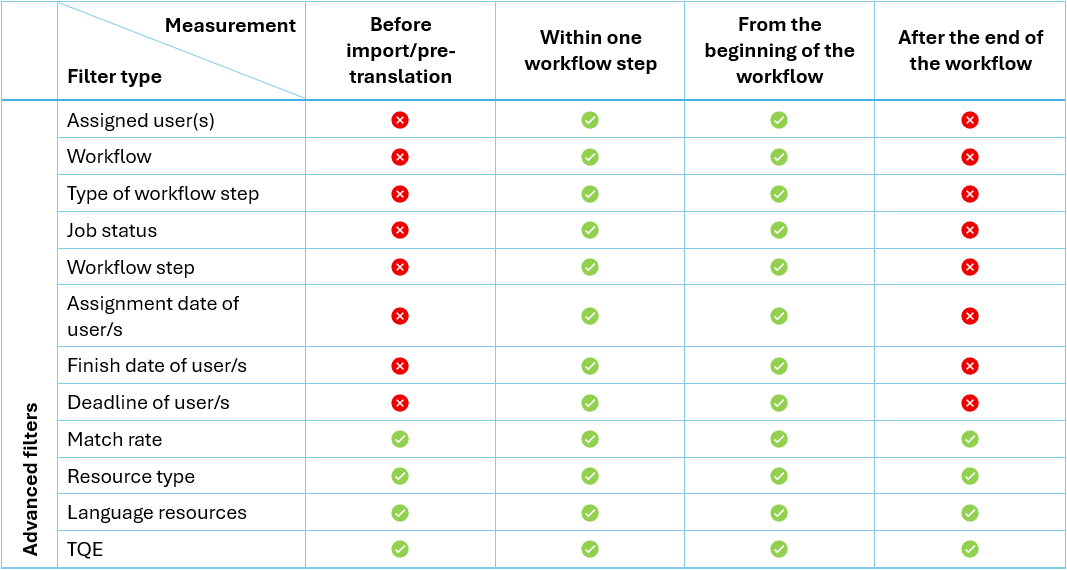
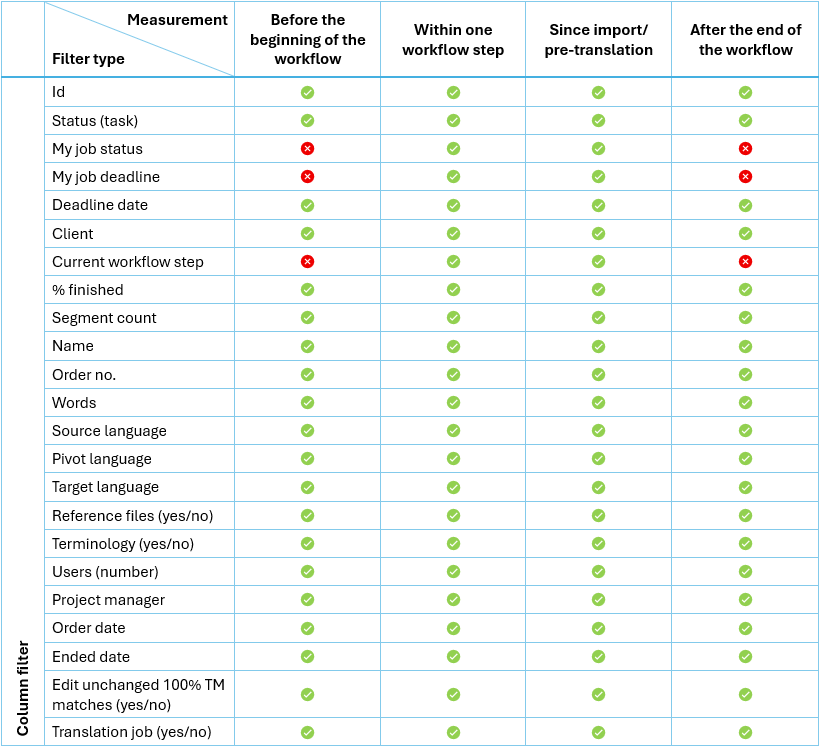
The Levenshtein distance and post-editing time can be queried for various filter scenarios. An extensive number of combinations can be displayed with the column filters (one or more combined with each other), but also with the advanced filters (can also be combined with column filters). Depending on the point in time or time period for which an evaluation is to be displayed, certain filter options are not permitted or do not deliver any results as they do not make sense conceptually (e.g. filtering on a workflow step type for a measurement since import/pre-translation).
The following matrix shows which filter options of the advanced filters and the column filters can be used for each evaluation type:
Advanced filters
Column filter
| Ticking the checkbox column of the task list has no effect on the filtering. |
|---|---|
| When filtering by the task’s project manager, the values refer to all tasks for which the filtered user is responsible as PM. So not to those in which the filtered PM was assigned a job or edited segments. The same applies to the columns “Current workflow step” and “Status” (i.e. task status). |
| If no user filter is set in the task list, the post-editing time or the Levenshtein distance of a segment is calculated by adding up all processing times or Levenshtein distances of all users within a workflow step, including edits by the PM. If filtering has been set for certain workflow step(s), only the post-editing times or Levenshtein distances within the filtered workflow step(s) are taken into account. However, they are still combined for all workflow steps for the calculation “since import/pre-translation”. And for the calculation “within one workflow step”, the times within a workflow step are added together, the average is calculated for all segments within the workflow step and then the average per workflow step is calculated across all workflow steps in the filtering. |
| A filter in the “Current workflow step” column does not correspond to the “Workflow step” filter option in the advanced filter, but only shows those tasks in which this workflow step is active. On the other hand, the “Workflow step” filter option in the advanced filter retrieves all workflow steps selected in the drop-down that correspond to the selection (and any additional filtering). An example to illustrate this: There are 5 tasks, all with the standard workflow Translate → Review. Two of the tasks have already been completed; in two of the other tasks, the “Translate” workflow step is currently open; in the fifth task, the “Review” workflow step is open. If you now filter for “Current workflow step” = “Translate” in the column filter, only the two tasks for which the status of the "Translate" workflow step is set to “open” appear in the filter results. However, if the “Translate” option is selected in the advanced filter under “Workflow step”, all five tasks appear in the filter results, as they all contain a “Translate” step. |
| A filter in the “Task status” column does not correspond to the “Workflow status” filter option in the advanced filter, but only shows those tasks that currently have the selected status. |
| Attention: Deleted job assignments are also taken into account in the statistics. If, for example, a client assignment is removed from a coordinator group, all jobs in the group for this client are removed. This results in the relevant tasks missing the translation step, which cannot be selected via filtering. However, they are still included in the statistics for the respective filtering. |
Behaviour with inconsistent workflows
If manual status adjustments by the PM result in an inconsistent workflow, for example if a translation step is reopened after the review step, changes and post-editing time are still always allocated to the workflow step to which the job assigned to the editing user belongs.
This means that any changes made by a user, or the time spent by the user to whom the “Translate” job is assigned, are always counted towards the translation workflow step, even if the editing only takes place later on in the workflow, after the translation job was reopened.
If a PM without an assigned job makes changes during the ongoing workflow, these changes and the corresponding processing time are added to the workflow step currently open in the task.
| Currently, a PM to whom a workflow step is assigned can only edit it if the status of the job to which they are assigned is set to“open”. In future, such a PM will also be able to process jobs at any time during the workflow, regardless of whether they are assigned to it or not. |
|---|
Calling up analyses
- Go to the task list.
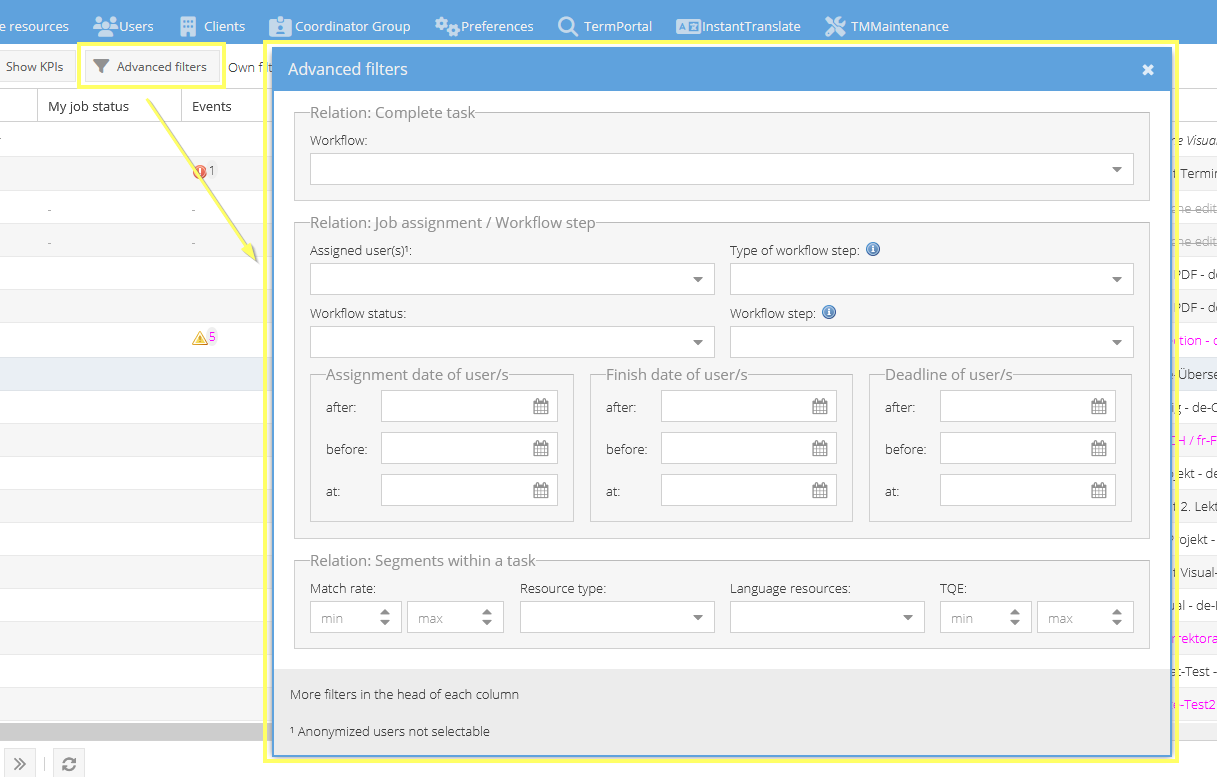
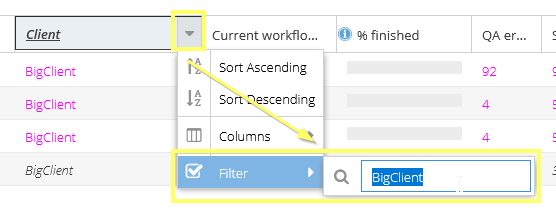
- Set the desired filter(s) so that you are shown exactly the situation that matches the projects you are interested in.
This can be a column filter, one of the advanced filters, or a combination of both; you can - combine any number of different filters to filter out exactly the desired tasks.
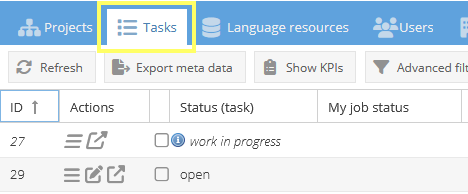
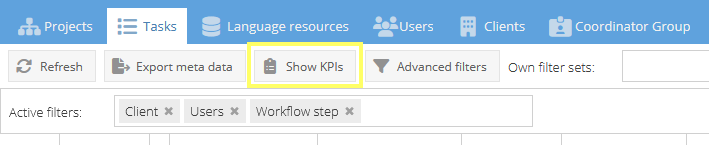
- Click on the “Show KPIs” button above the task list.
| If you only need the analyses for a single task, you can filter them using the task ID column. The selection of tasks via checkbox column or the selection of a task line has no influence on the KPI analysis. |
|---|---|
| If one or more of the filters “Match rate”, “Resource type”, “Language resources” or “TQE” are used, only those segments that match this filtering are taken into account. |
| When filtering for the language resource used for pre-translation, the first language resource used for pre-translation is taken into account – even if the user has subsequently taken over something else manually from the fuzzy match panel. |

Editing analyses outside translate5
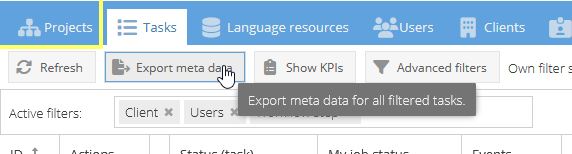
The possibilities of combining filters are not enough for you to get exactly the analyses you need? You can export the analyses at any time and process them further in Excel, Power BI or similar tools, for example. Click on “Export meta data” and you will shortly receive a downloadable Excel file containing all the columns and their values contained in the current filtering.
Use case examples
Measuring the post-editing time and the Levenshtein distance offers extensive possibilities for evaluating various key figures in the translation process and assessing both resource and performance quality. Here are a few examples; the list is of course by no means exhaustive:
Quality of the machine or LLM translation
Compare the quality of different MT/LLM engines by looking at the average processing time and Levenshtein distance of the tasks/segments that were pre-translated with the corresponding resources. Based on the knowledge gained, you can, for example, also sharpen your discount scale for procurement so that it is precisely tailored to the language resources used.
Quality of a language resource
Compare the average processing time of tasks that have been pre-translated with a specific language resource before and after you have worked on them in TM Maintenance or via a re-import for clean-up.
Suitability of a language resource for a specific client or specialist field
Find out which LLM resources are best suited for a particular client or specialist field by analysing the post-editing time and Levenshtein distance for similar texts translated with different resources.
Efficiency of linguists
Check to what extent your linguists edit the machine-translated segments, and how much time they spend on this work by setting a user filter in the advanced filter. In this way, only those values are displayed that relate to all segments that the filtered user saved as the last one in the respective workflow step. For example, a very low post-editing time could mean that a user is not carrying out their work conscientiously, while a very high post-editing time could mean that a user is making (too) many and possibly unnecessary changes, especially if the average Levenshtein distance is conspicuously high at the same time.
| The segments that were editable in a workflow step but were not processed are included in the calculation for those users who were the last to complete a task. |
|---|
Measuring the actual processing time
Bill your services with pinpoint accuracy by charging for the exact processing time measured by translate5.