Pimcore Translate5 Connector Bundle - User Guide
This guide explains how to use the Translate5 Connector to manage translations for your Pimcore Documents and DataObjects.
🌟 Introduction
The Translate5 Connector integrates Pimcore with the Translate5 Translation Management System. It automates the export of content for professional translation and ensures that translated content is accurately imported back into your Pimcore elements.
Installation
Please get in touch with the translate5-Team, if you are interested in using the Connector. The connector is a Pimcore plug-in (bundle in pimcore language). It needs to be purchased. After purchase we will send you installation instructions.
📤 Sending Content for Translation Immediately
1. Single Element Translation
To translate a specific Page or DataObject:
- Open the element in the Pimcore Admin interface.
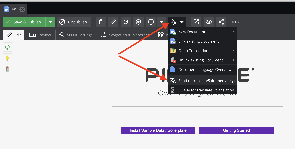
- Click on the translation icon in the toolbar.
- Click on "Send to translate5 (immediately)"
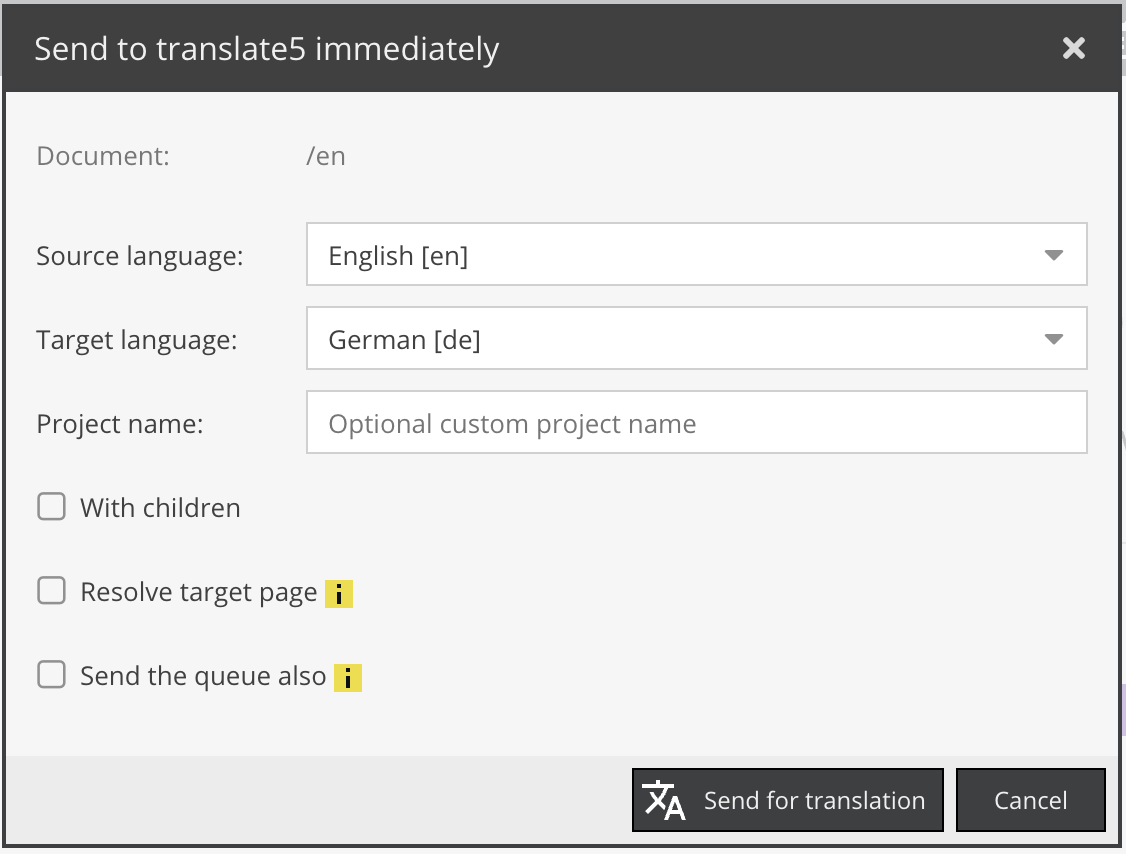
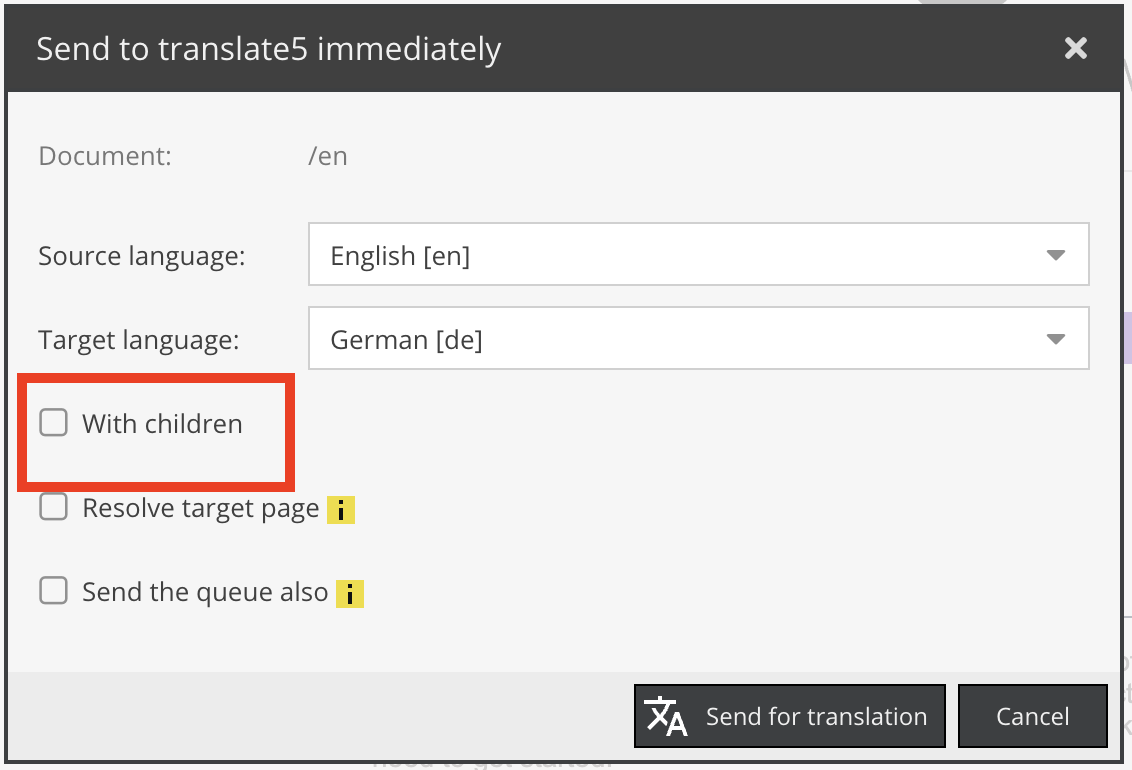
- Select your Source Language and Target Language(s).
- Provide a project name which corresponds to the project name in translate5 (optionally, if empty then default autogenerated name is applied)
- Resolve Target Page (applicable for Documents only):
- Unchecked (Default): The translation will be performed "in-place" for the current Document. Source texts will be taken from the Document itself during export. Document content will be overwriten on import. Translation is possible only to the single target language.
- Checked: The bundle will attempt to find a linked source-target (via Pimcore's page "Localization" settings). Translation is possible to multiple target languages. During the export source texts will be grabbed from the current Document's linked page resolved by the source language. During import after translation texts will be imported into the Document(s) that are resolved by target language(s).
- Click Send for Translation. The item will be sent immediately to Translate5.
2. Batch Translation
To translate multiple items at once:
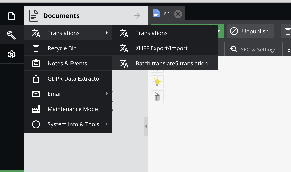
- Go to Tools → Translations → Batch translate5 translation
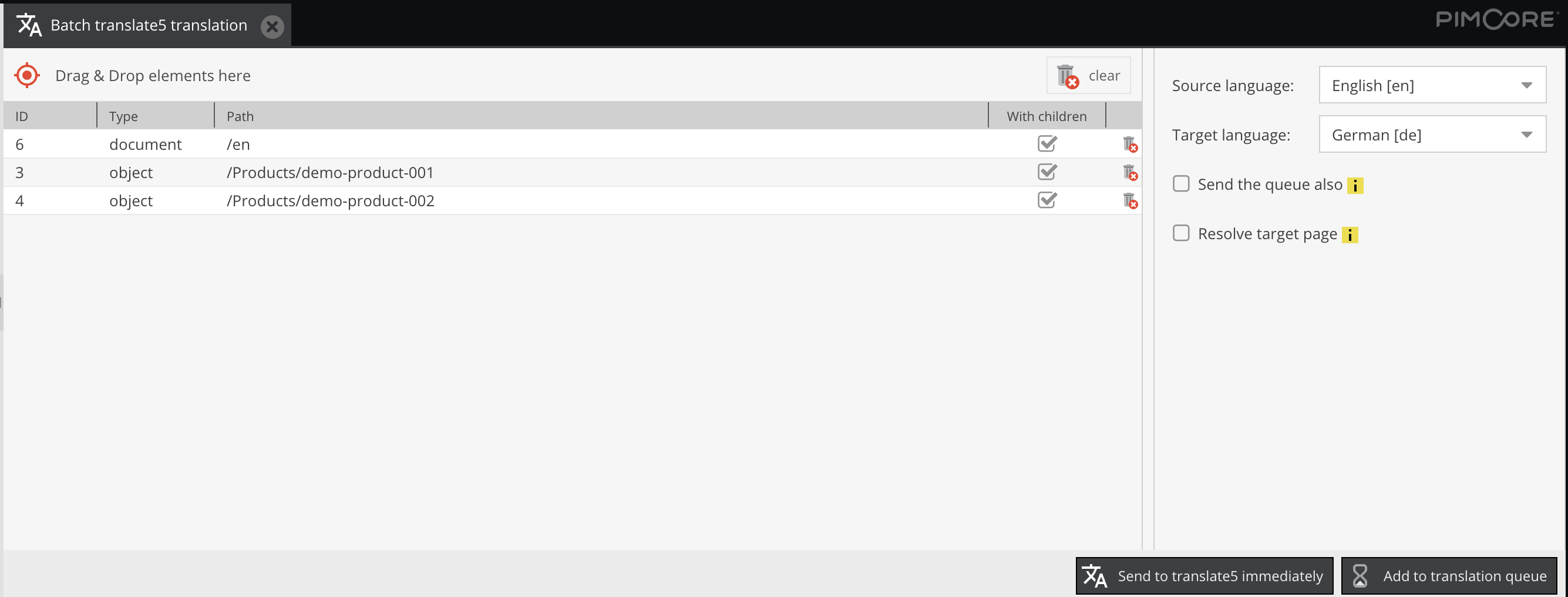
- Drag'n'drop pages and/or data objects to the list.
- Select your Source Language and Target Language(s).
- Resolve Target Page - behaves the same way as for single page translation and is visible only in case there are items of Document type selected.
- Click Send to translate5 immediately. The item will be sent immediately to Translate5.
Both Single Element Translation and Batch Translation UI have Send the queue also checkbox. If the checkbox is checked then alongside with the current document the queue for the same language pair is also sent. Details about the queue are in the next section.
⏳ Queuing elements for translation
Bundle provides a capability not to send Document or object for translation, but to add it to translation queue. This is useful for grouping items to save costs for translation. Admin can send to the queue one page after another and once queue is handled and sent for translation all Documents and Data objects are grouped by language pair.
1. Adding to queue single Element
To translate a specific Page or DataObject click on the translation icon in the toolbar → then click on the Queue for translate5 translation. All other steps and settings are the same as for sending to immediate translation (see above).
2. Adding to queue multiple Elements
The workflow is the same as for Batch translation (see above) except that for adding to queue you have to click Add to translation queue
Queue is sent to translate5 automatically in the background. Timing of sending (flushing) the queue is configurable in the bundle and can be:
- every certain amount of hours, e.g. every 1 hour, every 6 hours etc.
- daily at the specific time, e.g. everyday at 6 AM
- every specified day of the week at specified time, e.g. every Monday at 6 AM
Queue is only another way of grouping items to be sent for translation, no other differences against sending immediately.
🔗 Sending page with children
On the popup window for sending single object for translation and on the batch list there is a checkbox "With children". If "With children" checkbox is checked then the page is sent for translation with its children pages and if checked for the data object it is sent for translation with its children data objects.
Data objects inserted on the page are not children of the page. Only hierarchy inheritance is meant under "children" term here.
📝 Projects naming
If custom project name (see dedicated field on the screenshot in Single Element Translation section) is provided - translate5 project is named accordingly. This is applicable when translating a single page or using batch immediately. It is not applicable for the Queuing items.
If no custom project name is provided or it is not applicable the following logic is used:
- Single page project is named based on the page name if it can be resolved. For example page name is "Contact" then project name in translate5 is named Pimcore Contact - ID: XYZ
- Batch translations are named like Pimcore Batch - ID: XYZ
- Queue projects are named like Pimcore Queued - ID: XYZ
🖼 Capture visual
Starting from version 2.0, it is possible to attach a visual page capture when sending pages for translation to translate5.
When enabled, a visual snapshot of the rendered Pimcore page is delivered to translate5 alongside the translation files. Translators can view this visual snapshot directly within translate5 to see layout, context, and the placement of texts on the live page, improving translation quality and accuracy.
Visual page capturing is applicable to Documents (Pages) only. It is not used for DataObjects.
How it works in the User Interface
When an editor sends a Document for translation Single Element Translation:
1. Capture visual Checkbox:
- A Capture visual checkbox appears in the translation dialog for Documents.
- If checked, a visual snapshot of the document is generated and attached to the translate5 task.
- If unchecked, the document is sent for translation with text/XLIFF only, and no visual is generated or attached.
2. Default Checkbox State:
- The default state of this checkbox (checked or unchecked by default) is configured via the `default_capture_visual` bundle configuration parameter.
3. Turned Off via Configuration:
- If visual capturing is completely disabled in the bundle configuration, the Capture visual checkbox is completely hidden from the UI. Users will not see the option, and no capturing is performed behind the scenes.
---
Capturing Methods & Modes
The connector supports two ways to capture visual previews:
1. Backend Capturing (Gotenberg)
- Engine: Uses a [Gotenberg](https://gotenberg.dev/) server (headless Chromium) running as a service/container. This service is a part of the Pimcore in case Web-2-Print is installed
- Workflow: The backend instructs Gotenberg to render the preview URL of the Pimcore Document (`?pimcore_preview=true`).
- Benefits: Reliable, server-side execution with consistent typography and CSS rendering, completely independent of the editor's browser performance or network bandwidth. Such a PDF is properly parsed by the translate5 with all benefits like like navigation through segments and live editing.
- Supported Formats: `png`, `jpg`, and `pdf`.
- Custom Host: If Pimcore runs in Docker or behind internal networking where Gotenberg cannot reach the public domain, you can configure an internal host (e.g. `http://nginx` or `http://web`).
2. Frontend Capturing (`html2canvas`)
- Engine: Captures the rendered page preview directly inside the editor's browser using `html2canvas`.
- Workflow: The Pimcore Admin UI loads a hidden preview iframe and snapshots the rendered DOM into an image file before sending the request.
- Benefits: Requires no external server-side services (Gotenberg is not required).
- Drawbacks: The captured PDF can not be converted to HTML, so live editing is not possible.
- Supported Formats: `png`, `jpg`, and `pdf`.
Configuration Reference
All settings can be customized in your Symfony package configuration `config/packages/pimcore_translate5_connector.yaml`. Please refere to the documentation in the configuration file for details.