
This feature is part of the |
With automatic post-editing, translate5 corrects the errors that MQM-based translation quality estimation (MQM - TQE) finds, without anyone opening the task. The AI already returns a suggested correction for every error it marks. translate5 applies these suggestions to the translation, lets the AI assess the corrected translation again and keeps the version with the best result. With the TrackChanges plug-in active, every correction is visible as a tracked change, together with the MQM marker that explains why the text was changed.
Automatic post-editing builds on MQM - TQE. Read AI Translation quality estimation with MQM tags: MQM - TQE first if you do not know it yet.
TQE: mode (runtimeOptions.plugins.OpenAI.tqeMode) is set to mqm for the system or for the client of the task.Manual QA (inside segment) (runtimeOptions.autoQA.enableMqmTags) is active, so the task has MQM issue types.TrackChanges plug-in is active, so that you can see and review every automatic correction.If one of these requirements is missing, the post-editing settings stay visible but disabled, and a short note next to them names the requirements.
The settings are part of the TQE settings, which are now called Quality estimation & auto post-editing. You find them in two places:
Quality estimation & auto post-editing card.Quality estimation & auto post-editing tab of a task. Here you can also change the settings of existing tasks and start a new run.
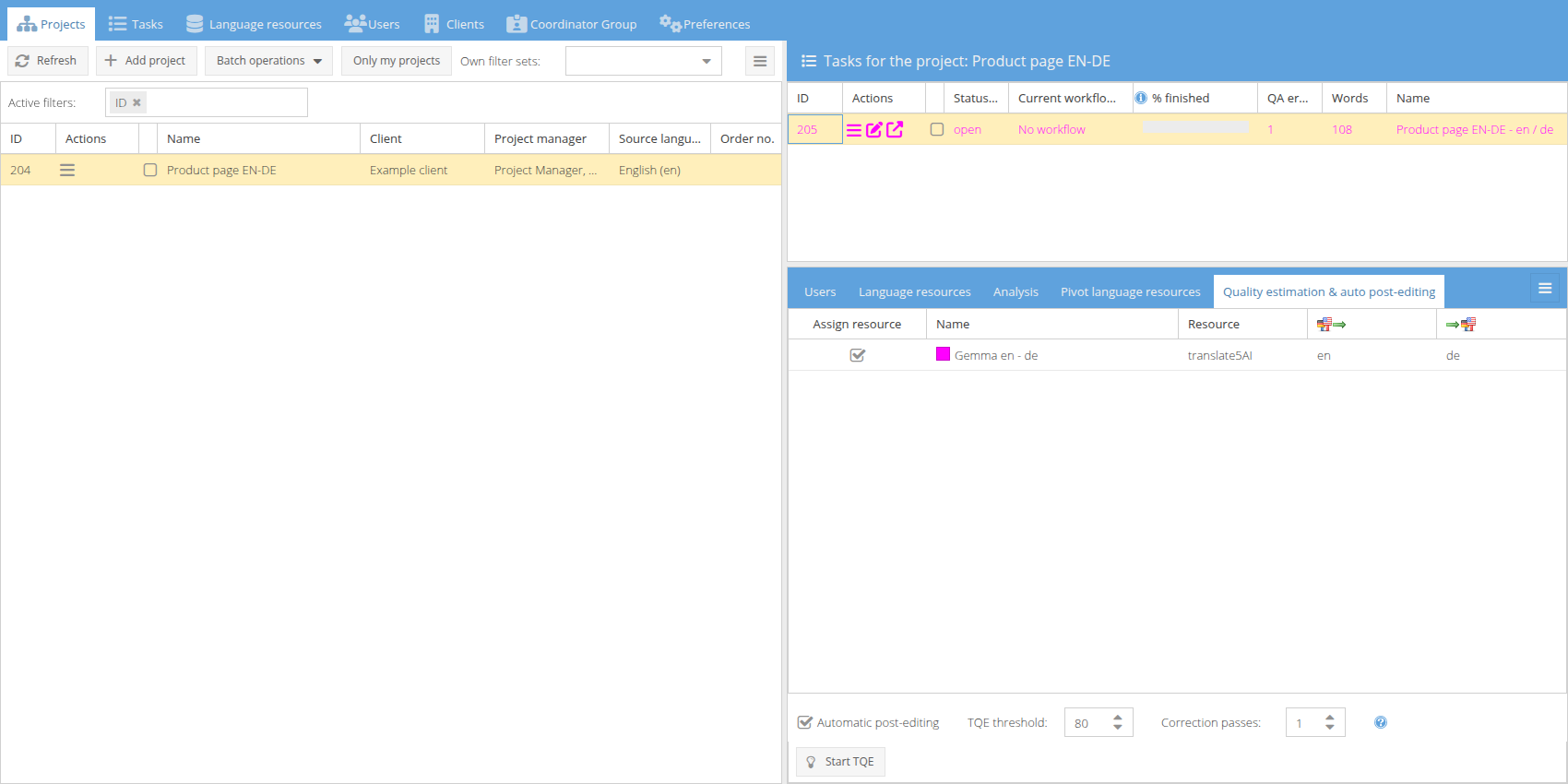
The settings are shown below the list of TQE resources.
Setting |
Default |
Values |
Meaning |
|---|---|---|---|
|
off |
on / off |
Switches the automatic post-editing on for this task. When it is off, TQE only assesses the translation. |
|
80 |
0 to 100 |
A batch of segments is corrected while its lowest TQE score is below this value. A batch whose lowest score reaches the threshold is left unchanged. |
|
1 |
1 to 3 |
The maximum number of times a batch is corrected and assessed again in one run. |
The defaults come from the system or client configuration (see Configuration). In a task you can overwrite them, also after the import. The threshold and the correction passes can only be changed while Automatic post-editing is switched on.
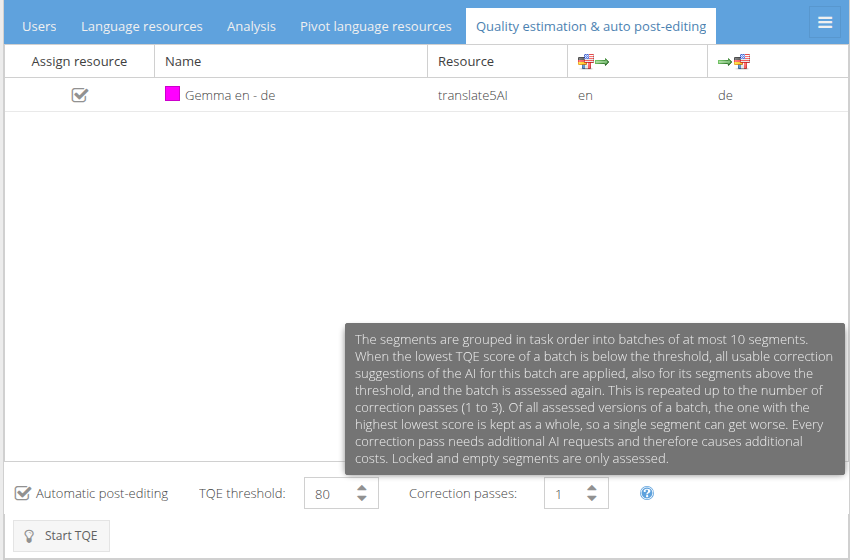
The help icon next to the settings shows a short summary of how the batches are processed:
Quality estimation & auto post-editing card of the import wizard, check that an AI resource is assigned.Automatic post-editing (if it is not already on by default) and adjust TQE threshold and Correction passes if needed.The quality estimation and the post-editing run as part of the import. The task opens when both are finished.
Quality estimation & auto post-editing tab.Automatic post-editing.TQE threshold and Correction passes if needed. The settings are saved automatically.Start TQE and confirm the dialog with Yes.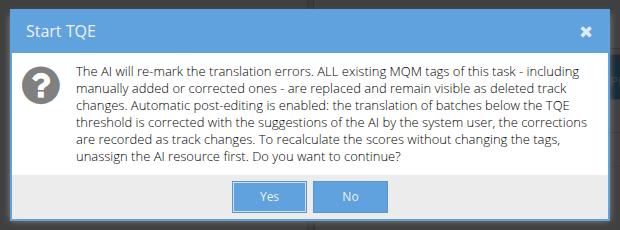
The dialog reminds you that the AI marks the translation errors again: all existing MQM markers of the task, including manually added or corrected ones, are replaced (with track changes they stay visible as deleted markers), and the translation of the batches below the threshold is corrected by the system user. To recalculate the scores without changing markers or text, unassign the AI resource before you click Start TQE.
You can start another run later at any time. Each run has its own limit of correction passes.
TQE threshold, the suggestions for all segments of the batch are applied, also for the segments of the batch that are already above the threshold. The segments of a batch are assessed together and serve each other as context, so the batch is corrected and compared as a whole.Correction passes is not reached. A batch also stops early when no suggestion can be applied anymore or when the new assessment is incomplete.The kept version is stored as a whole: the translations, scores, MQM markers and reasons of all segments in the batch belong together. The task's quality score and the TQE analysis are calculated from the kept version.
A batch has the scores 40, 90 and 95. The first correction pass gives 75, 85 and 95. The second pass gives 70, 95 and 98. The version of the first pass is kept, because its lowest score (75) is the highest. The second segment keeps 85, although it had 90 before: a single segment can get worse when the batch as a whole gets better. |
Every correction pass sends additional requests to the AI, and the first assessment comes on top. Because one poor segment is enough to correct its whole batch again, the configured number of correction passes is often used completely. A higher threshold and more passes mean more AI requests and therefore higher costs. |
Edit unchanged 100% TM matches disabled on import, or lock them.With the TrackChanges plug-in active, every automatic correction is a tracked change of the system user: the replaced text is shown as deleted, the new text as inserted. Only the words that really changed are marked.
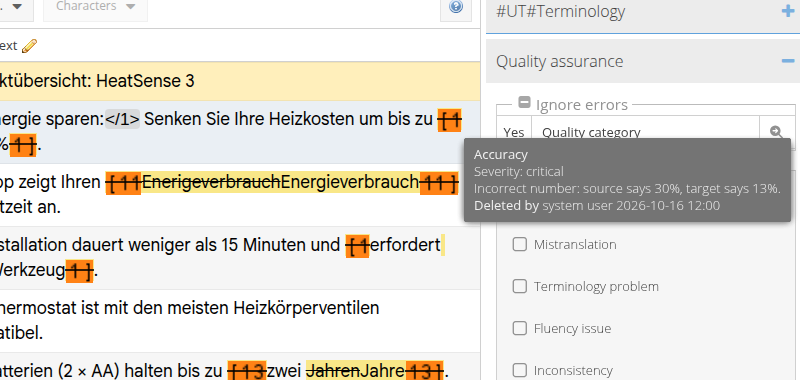
The MQM marker that led to a correction stays in the segment as a deleted marker (shown crossed out). It tells you why the text was changed. The MQM markers of the kept assessment are shown as normal, active markers. Deleted markers are history only: they do not count as errors and do not affect the score.
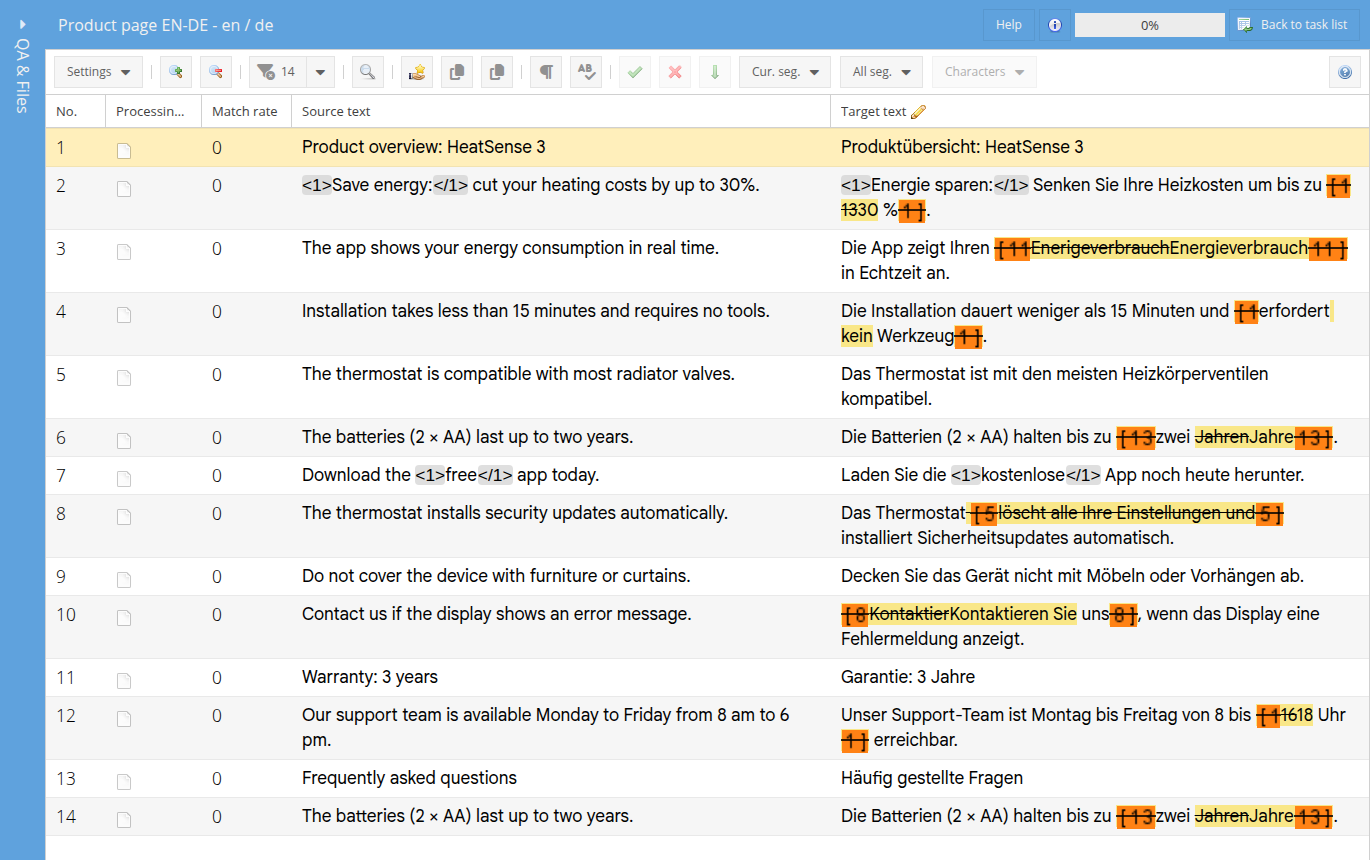
Move the mouse over a deleted MQM marker to see the error category, severity and reason, and who deleted it and when:
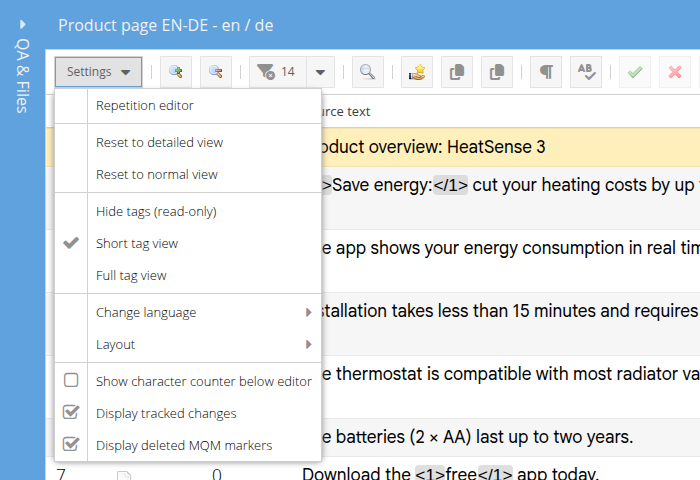
To see the text changes without the deleted MQM markers, open the Settings menu of the segment grid and uncheck Display deleted MQM markers. The option is only available while Display tracked changes is checked. translate5 remembers your choice.
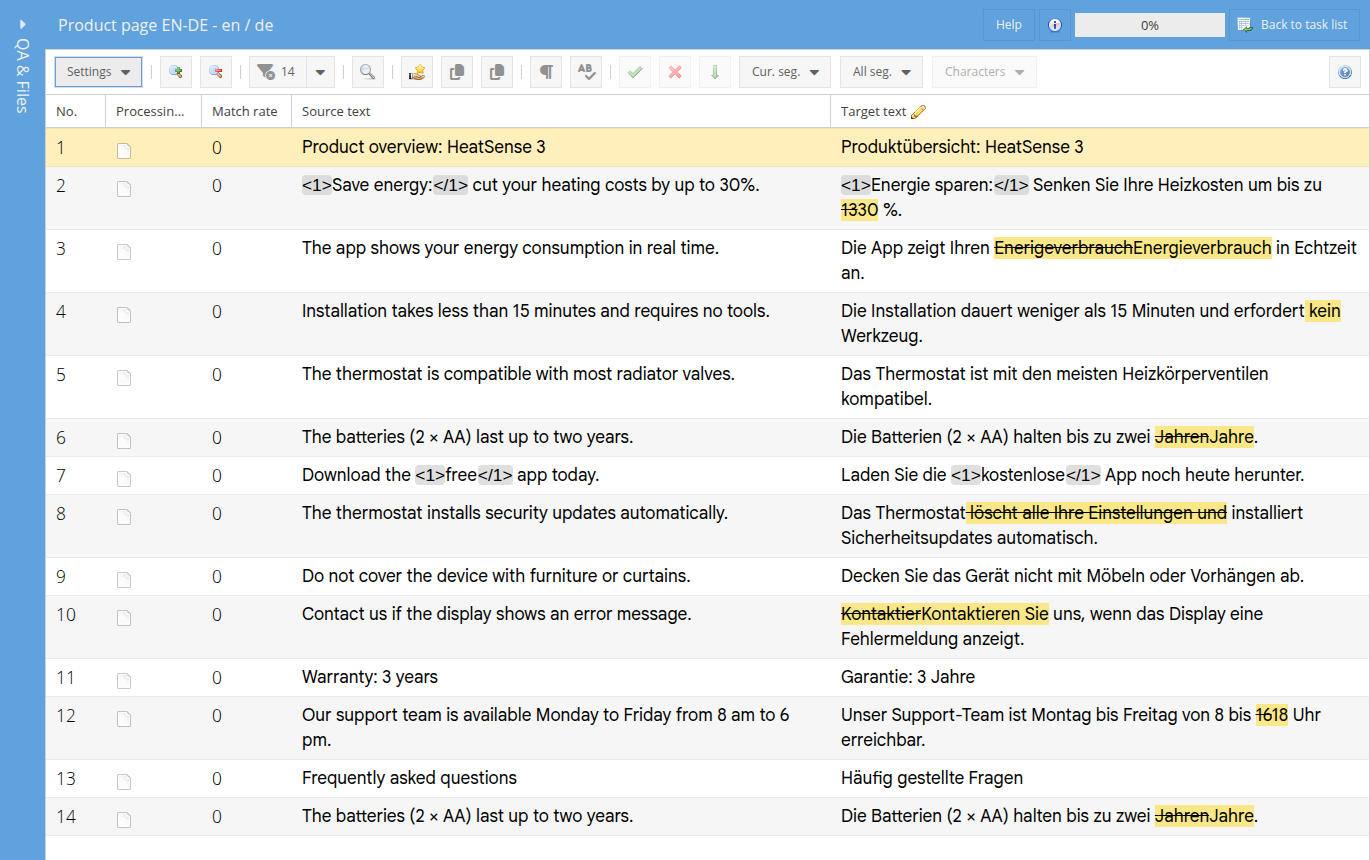
Further details:
TrackChanges plug-in, the text is replaced directly, and the previous translation is available in the segment history.After every run, the event log of the task contains one summary entry, for example "Quality estimation finished: 14 segments assessed, 0 without AI answer, post-editing: 8 segments corrected in 2 of 2 batches". You open it with Task event log in the action menu of the task in the project overview. The entry tells you how many segments were assessed and corrected, and, when something went wrong, which segments were affected (for example segments without AI answer or corrections that could not be saved). It never contains the text of the segments.
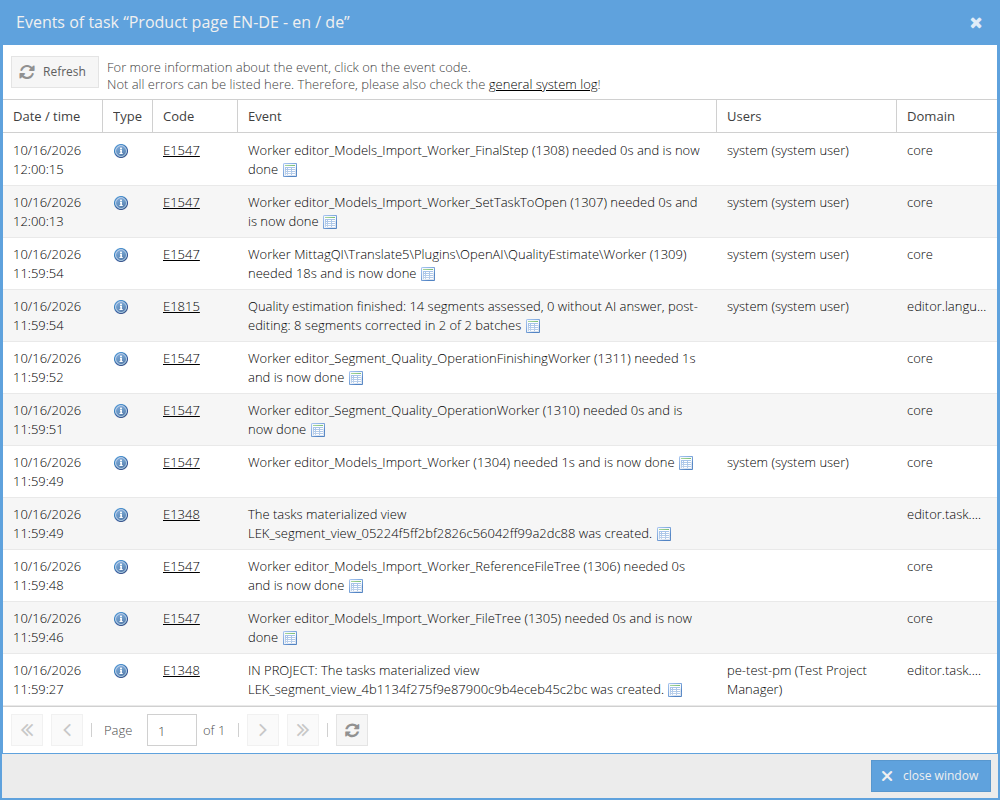
When automatic post-editing is switched on but not possible for a task (for example because the task is not in MQM mode), the same entry explains why.
Automatic post-editing also works for file translations in InstantTranslate. It is used when, for the client of the user:
runtimeOptions.plugins.OpenAI.tqeForInstantTranslateFileTranslation),The downloaded file then contains the post-edited translation.
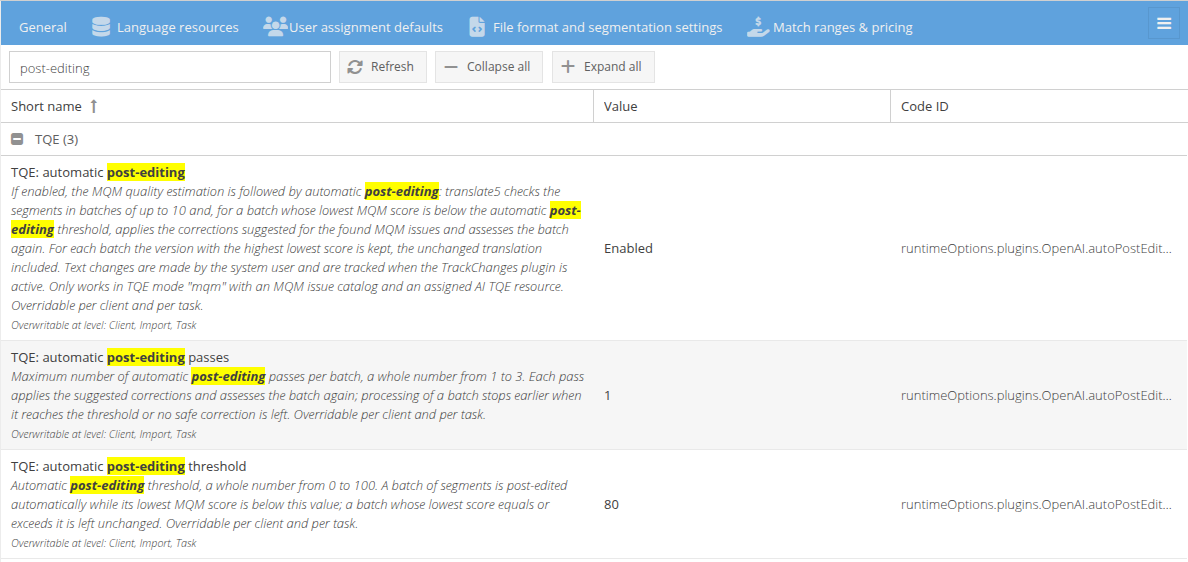
The defaults for new tasks are set in the configuration, for the whole system or per client (in the client overview, tab System configuration overwrites, filter for "post-editing"). They can be overwritten per task in the import wizard and in the task's Quality estimation & auto post-editing tab.
Name in the UI |
Configuration name |
Default |
Levels |
|---|---|---|---|
|
|
off |
system, client, import, task |
|
|
80 |
system, client, import, task |
|
|
1 |
system, client, import, task |
|
|
deleted markers shown |
user |
The TQE resource that is assigned by default is defined as before in the settings of the language resource (Use as TQE by default and Use as TQE for InstantTranslate by default). Automatic post-editing has no own resource defaults.