What is the Visual plug-in used for?
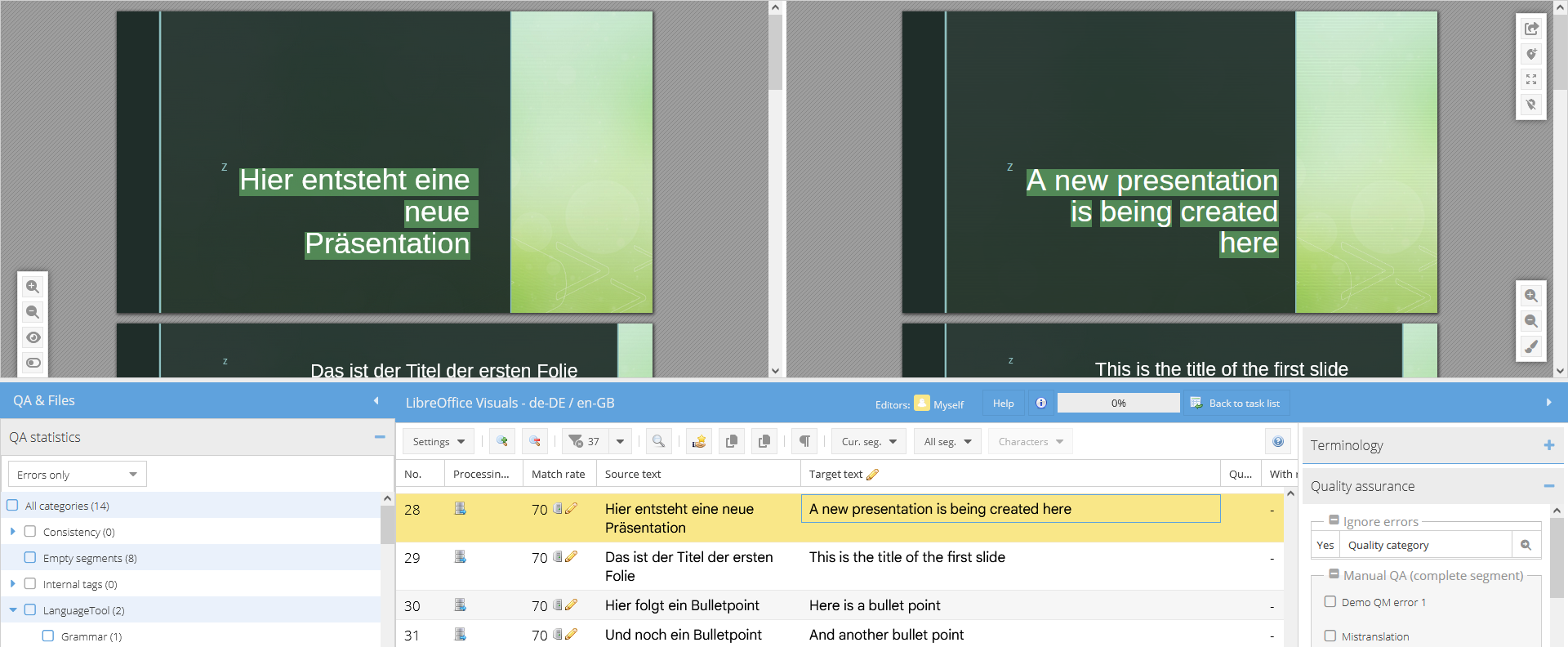
The Visual Plug-in from translate5 extends the translation editor with a WYSIWYG view (“What You See Is What You Get”), which makes it possible to display content in the original layout during translation or review. This makes it easier to understand the context and improves the translation quality, especially for complex layouts or graphic content.
Main functions of the Visual plug-in
Display with original layout preserved: Displays documents in their original layout, which is particularly helpful when translating PDFs, HTML files, XML/XSL combinations, images, or videos (MP4).
Visual review: Allows you to add comments and annotations directly in the layout to comment on specific text passages or design aspects.
Real-time feedback: Changes and comments are immediately visible, which speeds up the proofreading process and improves communication between translators and reviewers.
Support for various file formats: Accepts a variety of file formats for visualization, including PDF, HTML, XML, images, and videos.
Advantages for the translation process
The integration of the Visual plug-in makes the translation process more efficient and transparent:
Better contextualization: Translators see the text within its layout context, which helps reduce misunderstandings.
More efficient collaboration:Comments and annotations can be exchanged directly in the document, without separate files or communication channels.
Time saving:Direct editing in the layout eliminates the need for additional review loops or external tools.
- Thefinal text version is saved in the Translation memoryas textual changes are made directly in the translation editor during Visual review.
Application examples
UI strings in JSON, Android XML or iOS strings file with corresponding screenshots
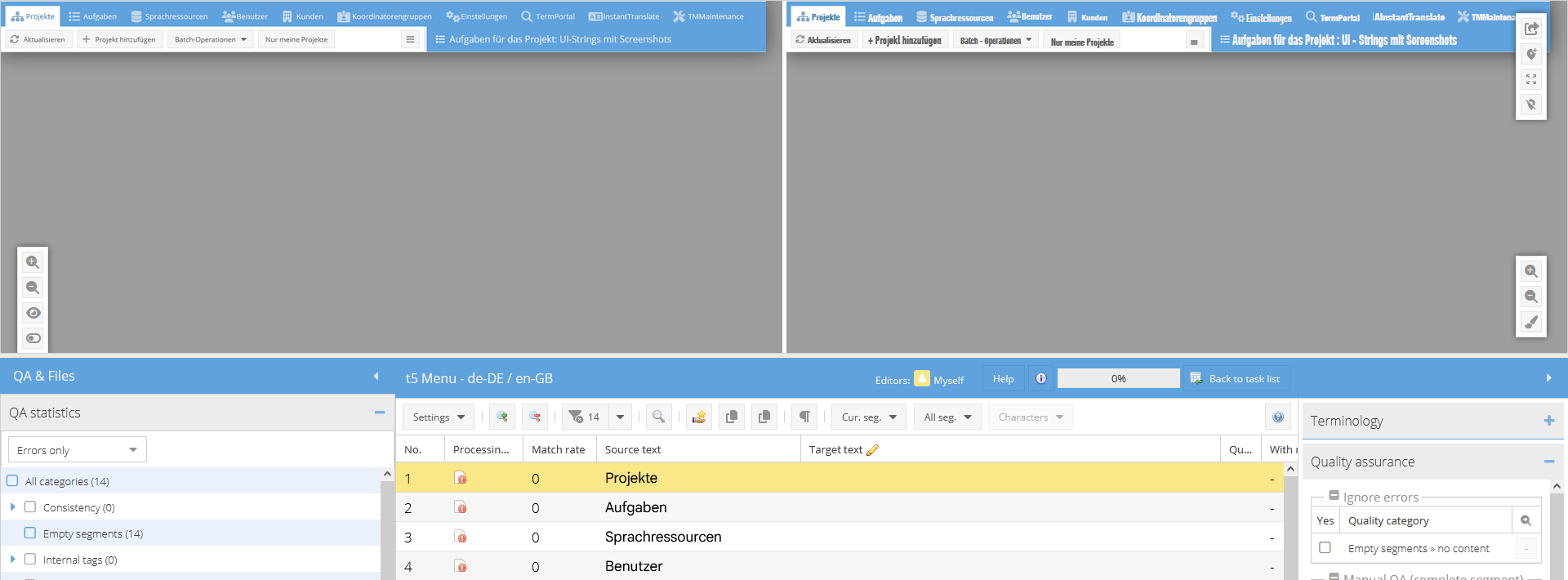
Upload the JSON, Android XML or iOS strings file(s) as source files and the screenshots of your app as Visual files. translate5 analyses the Visual files provided in the background, in this case screenshots and/or graphics, performs OCR and assigns the “graphic texts” found this way to the JSON strings. The result shown in the translate5 editor is a live preview of the strings using the graphics provided. Translators and editors therefore work directly in context. You can even click on the Visual text passages and are taken directly to the corresponding segment in the segment table.
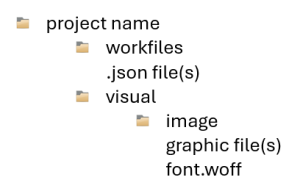
| To ensure that translate5 Visual displays the texts with the correct font after character recognition, create the project based on an import ZIP including the corresponding web font in WOFF format. The correct ZIP folder structure is:
|
|---|---|
| The following graphic file formats are permitted for Visual files: JPG, JPEG, GIF, PNG, BMP, TIFF, WEBP |
| Please note that only the text contained in the JSON files is displayed in the segment table. If the graphics contain additional text, it is ignored. |
| By default, the keys of JSON files are added as comments to the respective value in the Visual display. This can be customized in the system configuration if not required. |
| Please note the following requirements for this scenario:
|


Brochure in IDML format with corresponding print PDF
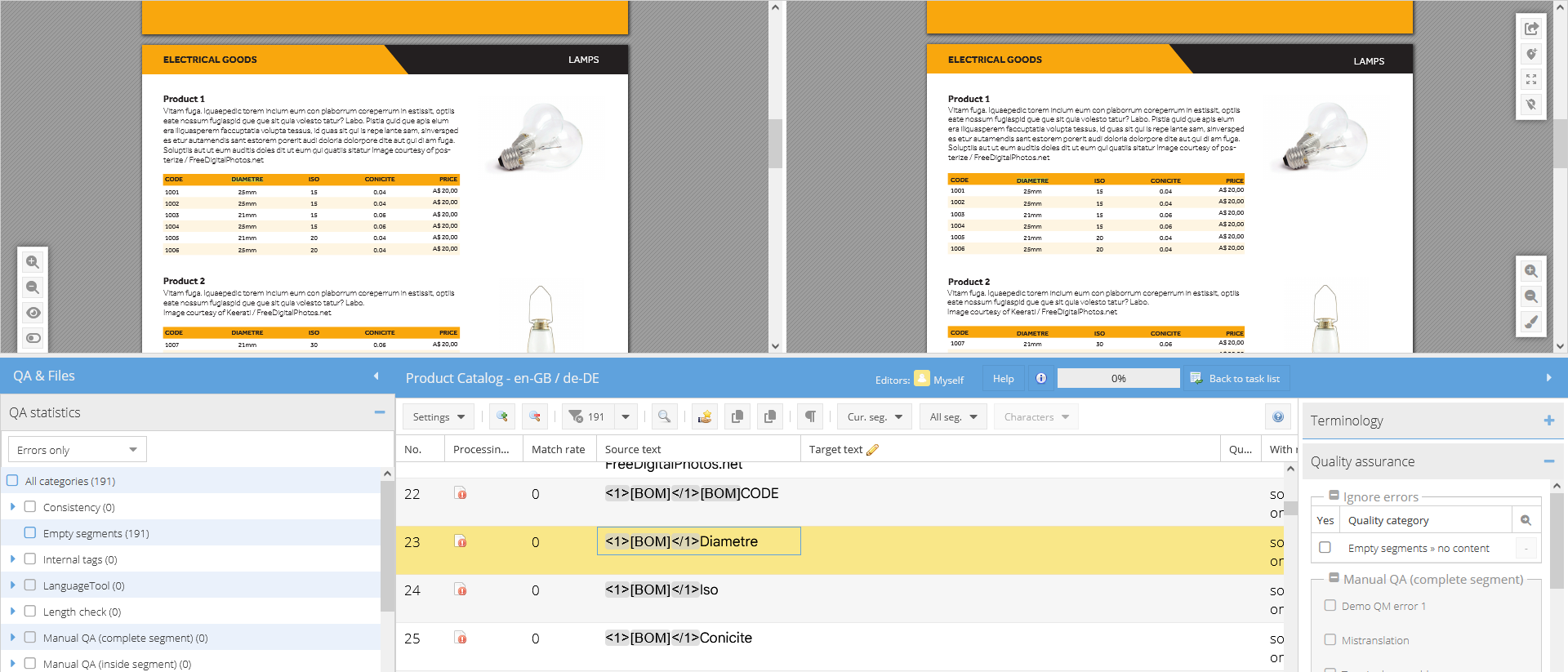
Publications that are created in InDesign are best translated in a format that can be re-imported into InDesign. Compared to alternative workflows, this saves tedious copy-pasting work and prevents errors, especially if the translation is to go into a language that the graphics team may not be familiar with. The IDML export format is ideal for this purpose. It can be imported directly into translate5 together with the corresponding print PDFs Visual files. The advantage: After translation, you can import the IDML file back into InDesign and will only need to make slight adjustments there.
To link IDML and PDF correctly, upload the IDML file(s) as work files and the PDF file(s) as Visual files when creating the project.
| You can also directly translate PDF files in translate5, without an additional editable file containing the text. translate5 performs a complete character recognition during import and then displays the PDF file directly in the editor with Visual display. When exporting the translated file, a PDF file is generated. |
|---|---|
| The fonts used in the PDF file can be uploaded in the translate5 Preferences under the menu item In-Context Fonts after the project has been created. |
| An important prerequisite for the visualization to function smoothly and deliver good results is that all pages within a PDF file – and especially across multiple PDF files – have the same format and orientation (e.g. “A4 landscape”). |
| Make sure that the PDFs used for the Visual are optimized for web use. Print-specific elements in particular can cause problems in the conversion process, such as incorrect colours, missing fonts or similar display errors. |
| The import may crash under certain circumstances when using PDF files as Visual. The most common cause are segmentation problems in the PDF-to-HTML converter, caused by problems with the fonts used in the PDF. In one specific case, the source files were created with Microsoft Office and then saved as PDFs. In these generated PDFs, the fonts were only partially embedded (according to the PDF information). After the Word document was exported as a PDF using the Printing dialogue instead, the problems no longer occurred. |

Website with upload of HTML files including images and CSS stylesheet
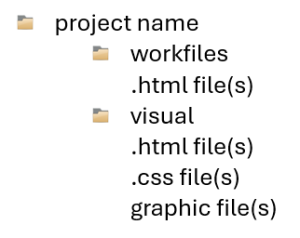
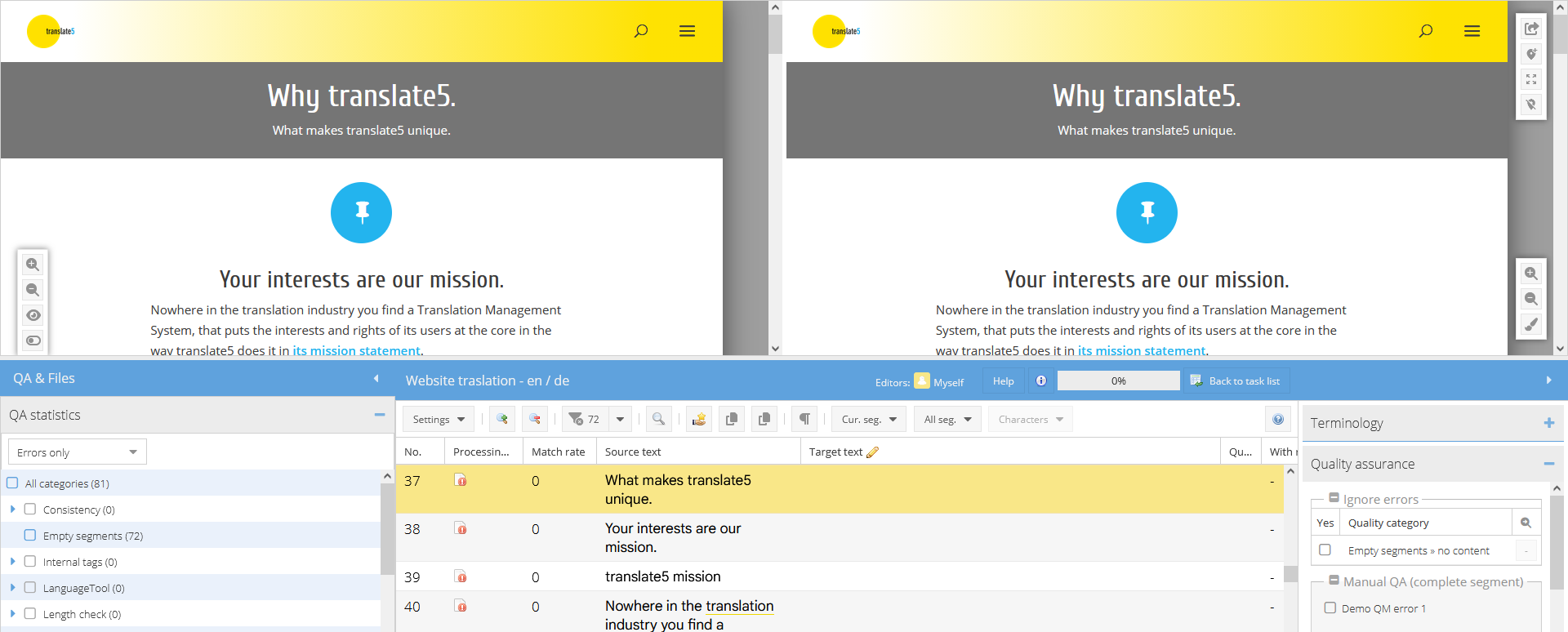
If you have access to all HTML files and the associated files relevant for the presentation, such as CSS stylesheets, images and web fonts etc., you can import these into translate5 in the correct ZIP folder structure. This way, the content is displayed in the Visual view according to the underlying website or HTML presentation.
| To ensure that translate5 Visual visualizes the website to be translated correctly, create the project on the basis of an import ZIP with the corresponding images and the CSS stylesheet included. The correct ZIP folder structure is:
Important: The HTML files must be contained in both the “workfiles” folder and the “visual” folder. |
|---|---|
| Make sure the HTML files are correctly linked to the corresponding CSS stylesheets using relative links. |
| Please note the following important requirements for the HTML files used:
|
Website with upload of source files (XML, HTML, ...) and a list of URLs
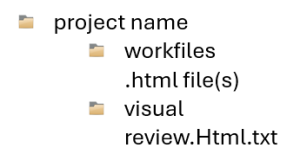
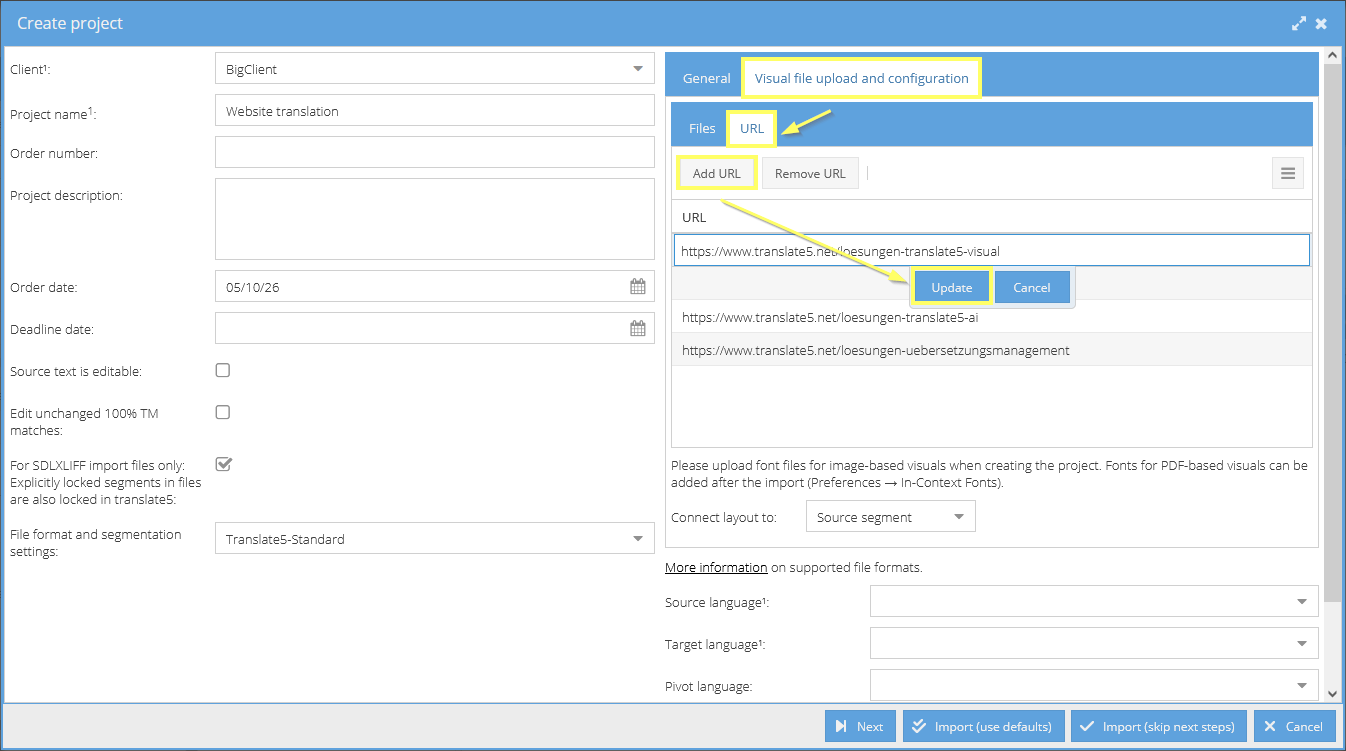
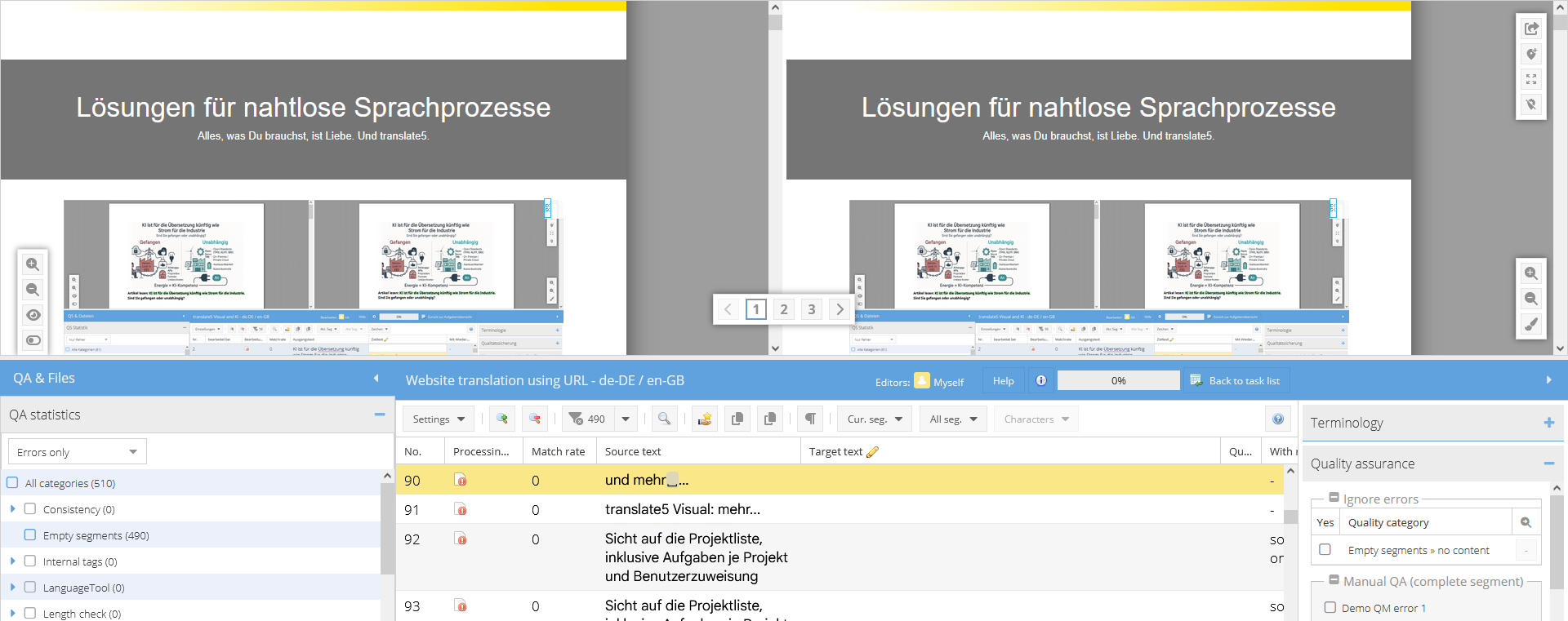
With this approach to translating website content, you use the source files of the pages (XML, HTML or other formats) that are to be localized, and a list of their URLs for the Visual. The HTML files are uploaded as work files, while the URLs are added in a list in the Visual area.
| Alternatively, you can also upload both information – i.e. the HTML files as well as the URLs via import ZIP – when creating the project. The correct ZIP folder structure for this scenario is:
|
|---|---|
| By default, resnames from the HTML files are added as comments in the Visual display. This can be customized in the system configuration if not required. |
| Please note the following important requirements for the HTML files used:
|
Video with subtitles
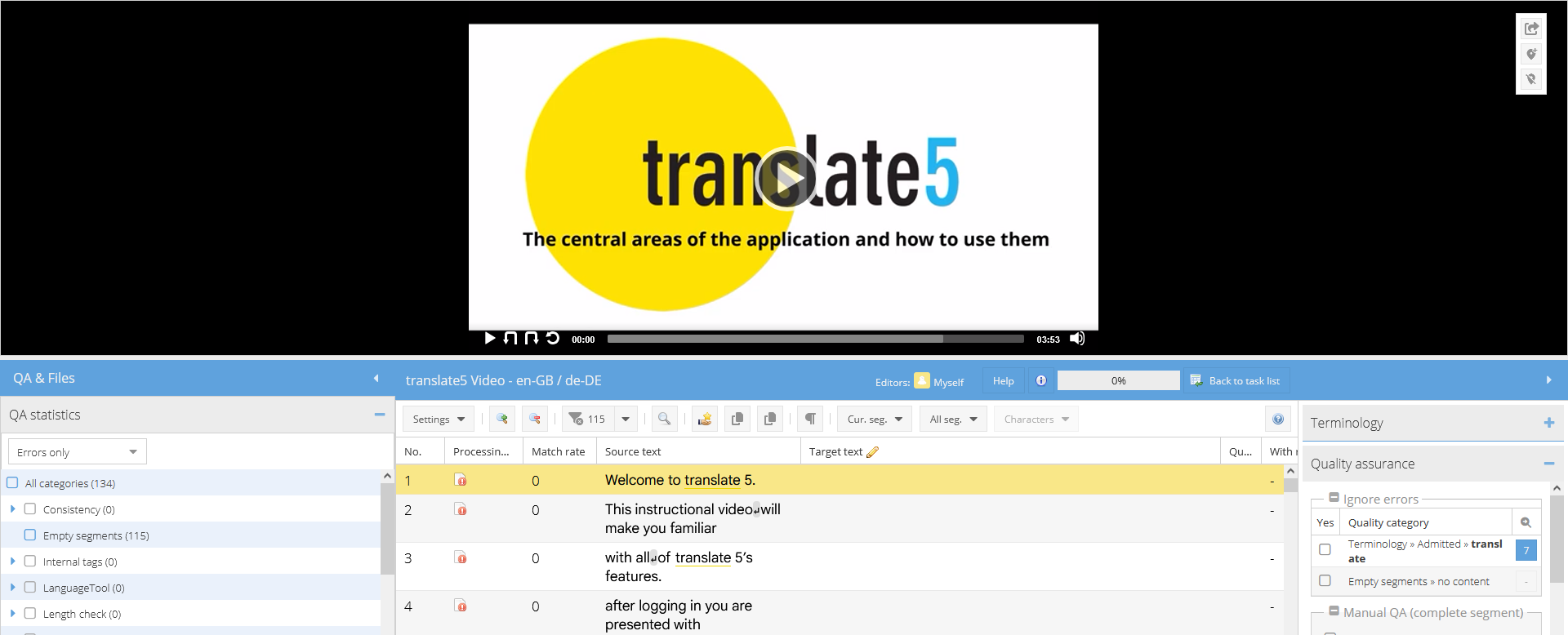
With video subtitles in particular, it is extremely important that translators not only have the subtitle text in front of them, but can also play back the video material while they work. translate5 makes this possible by allowing the subtitle file to be uploaded as a work file and the corresponding video as a Visual file.
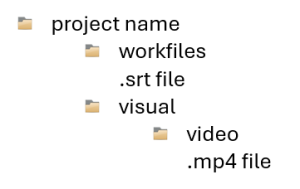
| You can also upload the subtitle files and the video in an import ZIP when creating the project. The correct ZIP folder structure for this scenario is:
|
|---|---|
| The following subtitle formats can be imported: SRT, VTT, XLSX. |
| The following video formats are permitted as Visual files: MP4. |
| Please note the following requirements for video files:
|
| If the subtitles are uploaded in the form of an Excel file, it must have the following structure:
|
| The following time formats are permitted:
|
XML file with Visual in XSLT format
Translation projects with source files in XML format are always a particular challenge, as translators receive little, if any, contextual information in XML format, let alone for visualization. translate5 has the solution to this problem too: projects that are created directly on the basis of the XML file(s) and the associated XSLT stylesheet. This means that translations can really be done in context and the translators can see directly whether their translations fit into the fields provided.
Alternatively, PDFs or a list of URLs can also be used as a source for visualization with XML (see above).
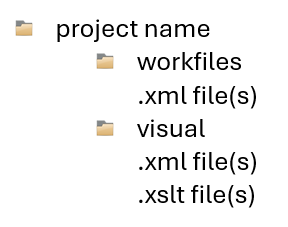
| To ensure that translate5 Visual visualizes the content to be translated correctly, create the project based on an import ZIP with the corresponding stylesheet included. The correct ZIP folder structure for this scenario is:
Important: The XML files must be contained in both the “workfiles” folder and the “visual” folder. |
|---|---|
| Make sure that the XML files are correctly linked to the corresponding XSLT stylesheets. |
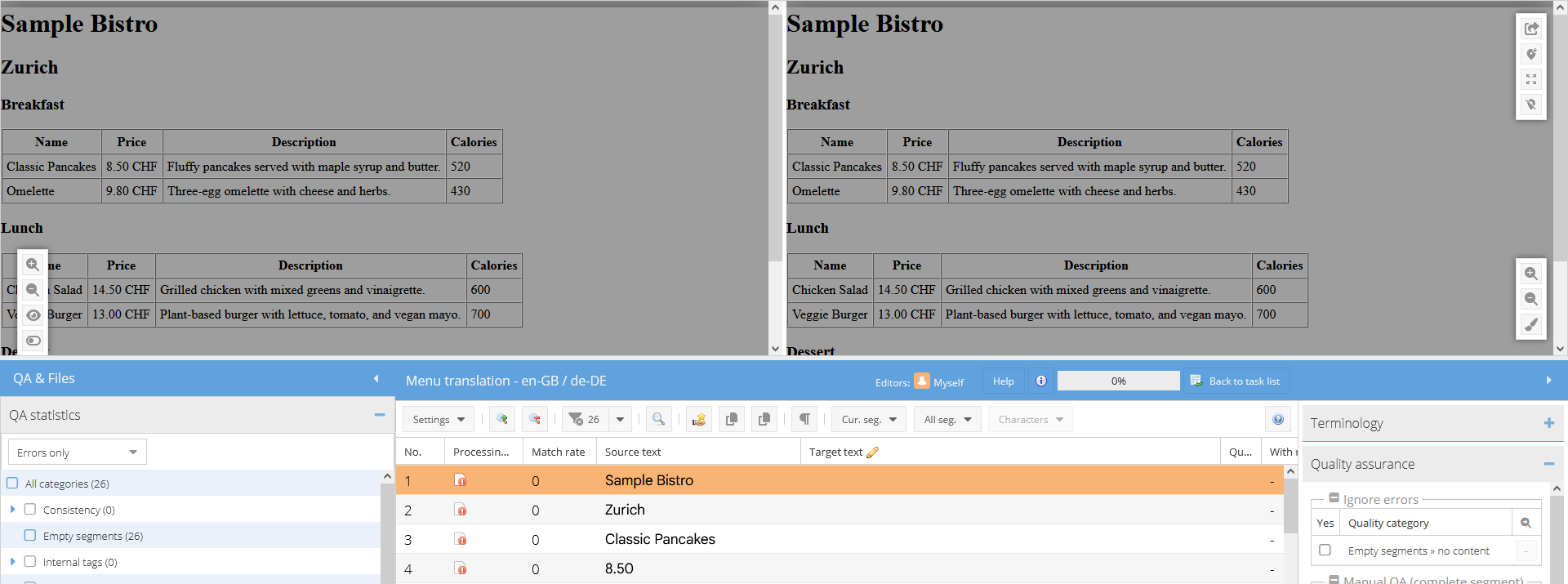
Any file format accepted by translate5 with PDF file, images or list of URLs as Visual
The combinations presented above are examples. In principle, you can use all file formats supported by translate5 in combination with the following Visual sources:
- PDF file
- Pixel-based images
- List of URLs
translate5 performs character recognition during import and compares the Visual content with the work file content in order to visualize and link it accordingly in the editor.
| In systems hosted by translate5 from version 7.28 onwards, a Visual file is automatically generated for some MS and LibreOffice formats (DOCX, RTF, PPTX, ODT and ODP) and PDF as work files if no custom Visual files are uploaded. For example, PowerPoint files can be translated and proofread directly in context this way. |
|---|---|
| The fonts used in the PDF file can be uploaded in the translate5 Preferences under the menu item In-Context Fonts after the project has been created. |
| An important prerequisite for the visualization to function smoothly and deliver good results is that all pages within a PDF file – and especially across multiple PDF files – have the same format and orientation (e.g. “A4 landscape”). |
| Make sure that the PDFs used for the Visual are optimized for web use. Print-specific elements in particular can cause problems in the conversion process, such as incorrect colours, missing fonts or similar display errors. |
| The import may crash under certain circumstances when using PDF files as Visual. The most common cause are segmentation problems in the PDF-to-HTML converter, caused by problems with the fonts used in the PDF. In one specific case, the source files were created with Microsoft Office and then saved as PDFs. In these generated PDFs, the fonts were only partially embedded (according to the PDF information). After the Word document was exported as a PDF using the Printing dialogue instead, the problems no longer occurred. |